Configure and log in to P4 Server
You can configure how the P4 for Visual Studio Code extension connects and authenticates with the P4 Server.
On this page:
Configure the P4 VS Code extension connection to P4 Server
The P4 VS Code extension supports configuring your P4 Server connection using a P4CONFIG file or using Visual Studio Code settings. Choose one method and the extension uses it exclusively.
Method 1: Use a P4CONFIG file
By default, the P4 VS Code extension reads connection details from a P4CONFIG file.
When Enable P4 Config Scan on Startup option is enabled, the extension reads connection details from a P4CONFIG file by searching upward from the workspace root through parent directories. It combines values found at different directory levels to determine the effective configuration. In very large workspaces, this directory search can increase start-up time. When this option is enabled, any P4 Server connection values set in Visual Studio Code settings are ignored.
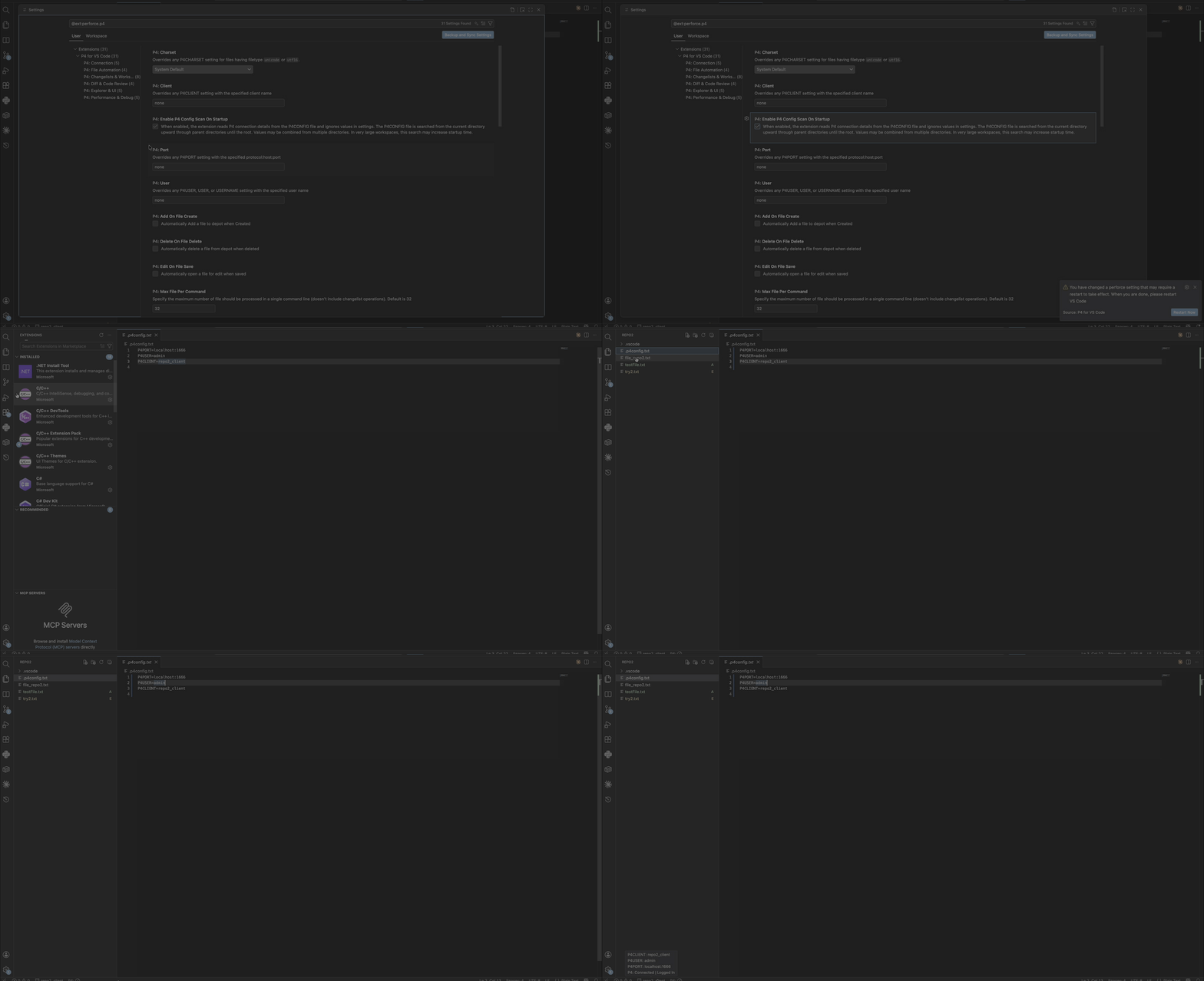
To get the extension to read connection details from a P4CONFIG file on disk:
-
Select the Settings
 icon from the Activity bar and then select Settings.
 -
Expand Extensions in the left pane, or search for P4 VS Code.
-
Under P4 Connection, ensure Enable P4 Config Scan on Startup is selected.
Method 2: Use Visual Studio Code settings
Configure the extension by specifying P4 Server connection details directly in Visual Studio Code settings. Any P4CONFIG files on disk are ignored.
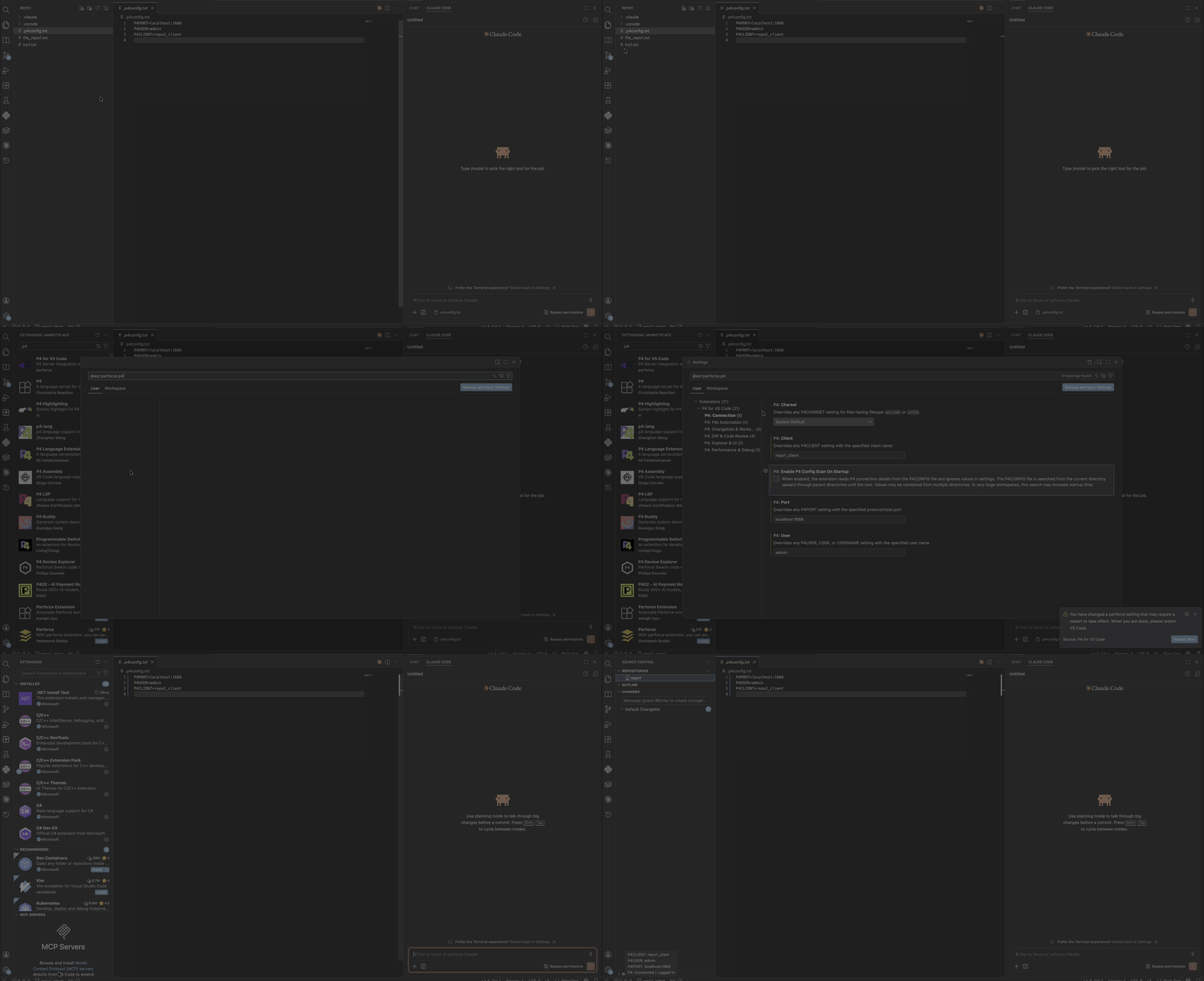
-
Select the Settings
icon and then select Settings. -
Expand Extensions in the left pane or search for P4 VS Code.
-
Under P4 Connection, clear Enable P4 Config Scan on Startup.
-
Set the following values in Visual Studio Code settings:
-
p4.port: Specify the P4 Server port number.
-
p4.user: Specify the user name.
-
p4.client: Specify the workspace or client name.
-
(Optional) p4.charset: Specify the setting for unicode or UTF-16 files. If not specified, the system default is used.
If a valid ticket is available, the extension uses it automatically. If no valid ticket is found, the extension prompts you for a password. -
Log in to P4 Server
To authenticate with the P4 Server from Visual Studio Code:
-
Select Source Control in the Activity bar.
-
In the Changes view, select More Actions (
 ).
). -
Select Log in to P4.
-
Follow the prompts to authenticate, if required.
After a successful login, the extension connects to the P4 Server and displays the client workspace directory name under Repositories in the Source Control view. You can view all changelists associated with that client, see pending file changes, and search changelists using available filters.
View connection status
When the P4 VS Code extension is installed and you open Visual Studio Code from the root of a client workspace, connection information is available in the Visual Studio Code status area.
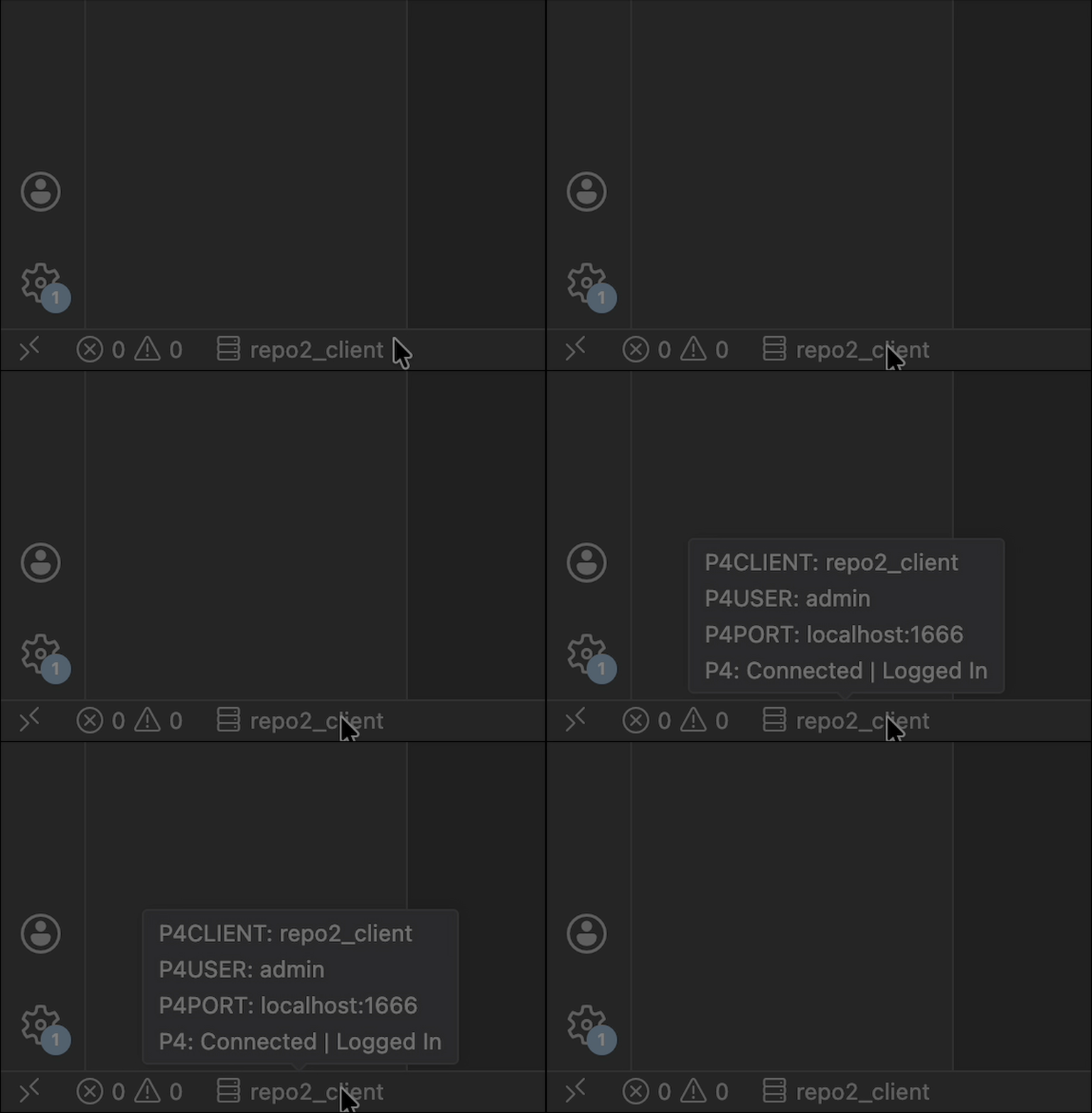
-
Notifications appear in the lower‑right corner of Visual Studio Code.
-
Hover over the status bar to view:
-
P4CLIENT
-
P4USER
-
P4PORT
-
Current connection status
-
These indicators help you confirm that Visual Studio Code is connected to the expected P4 Server, user, and client workspace.