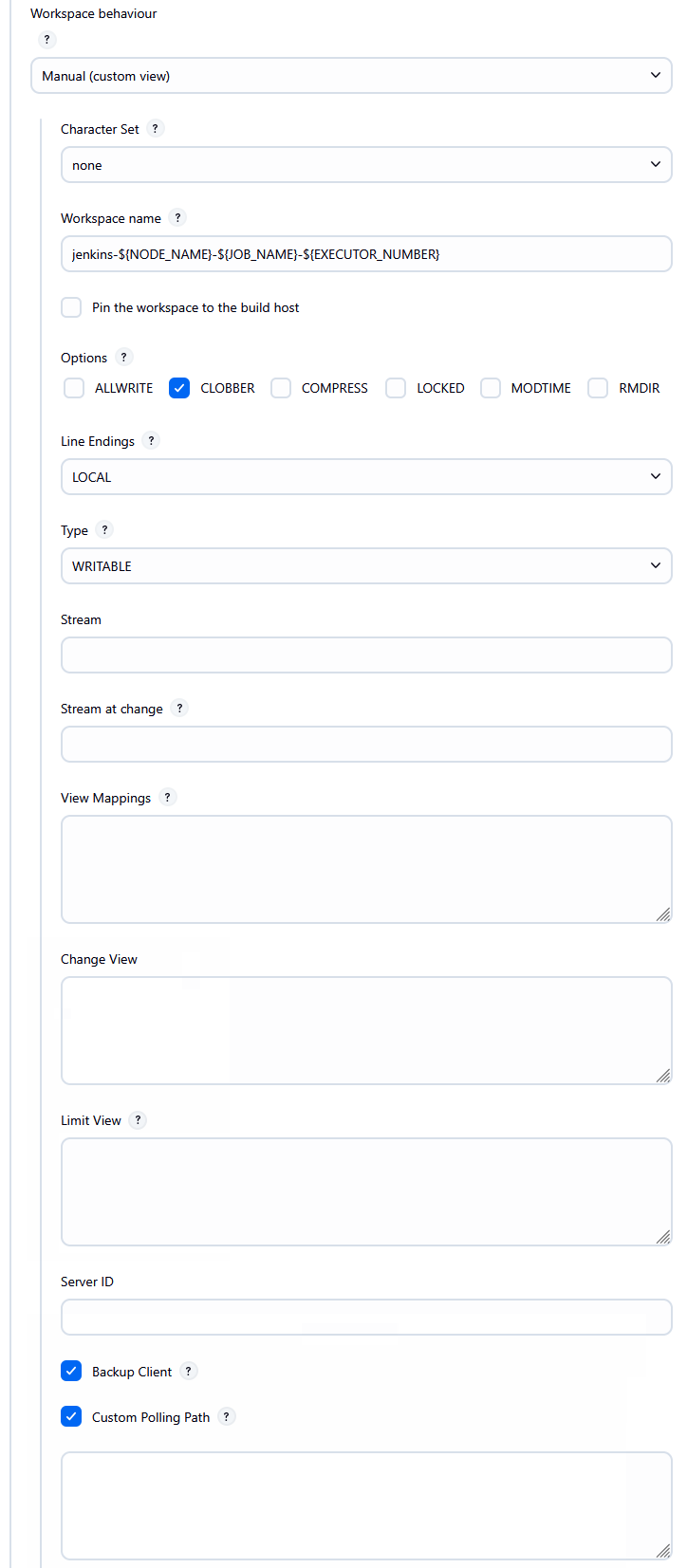
Manual workspace
Manually define the workspace view and sync options. If the workspace doesn't exist, Jenkins will create it. If it already exists, Jenkins will update the workspace specification with the selected options.
CLOBBER option.The following options are available when configuring a manual workspace.
- Use Character Set to set the character set used by Jenkins when syncing files from the Perforce P4 Server. This should be set to none unless the workspace is connected to a Unicode enabled P4 Server.
-
In Workspace name, enter a unique name for the manual workspace. Each Jenkins agent node must use a distinct Perforce workspace. The name is generated using a format string that substitutes predefined variables. You must include at least one variable, but it's recommended to use the following as a minimum:
jenkins-${NODE_NAME}-${JOB_NAME}-${EXECUTOR_NUMBER}
For more information about variables, see Variable Expansion
Pipeline:
- Use a unique workspace name for the Jenkinsfile that will not get reused by the sync steps in the script. A postfix of -script will help to identify the workspace's use and make it unique from code sync steps.
-
Variables in the script for the workspace name must be surrounded by single quotes as shown:
name: 'jenkins-${NODE_NAME}-${JOB_NAME}-${EXECUTOR_NUMBER}',
Using full double quotes " expands the variables early and the script will fail.
-
(Optional) Select Pin the workspace to the build host to restrict the workspace to a specific agent. You do not always need to select this option, as including
${NODE_NAME}in the workspace name already ensures each agent uses a unique workspace. - The Options sections contains the following configurations for the client behavior:
- ALL WRITE: Select to leave all files writable on the client. By default, only files opened by p4 edit are writable. If set, files might be clobbered as a result of ignoring the CLOBBER option (see below).
- CLOBBER: Select to permit p4 sync to overwrite writable files on the client. noclobber is ignored if allwrite is set.
- COMPRESS: Select to compress data sent between the client and P4 Server. This is used to speed up slow connections.
- LOCKED: Select to allow only the client owner to use or change the client spec. Prevents the client spec from being deleted or unloaded.
- MODTIME:Sselect to make p4 sync and p4 submit preserve file modification times, as with files with the +m type modifier. For more information about MODTIME, see p4 help filetypes. With nomodtime, file timestamps are updated by sync and submit operations.
- RMDIR: Select to delete a workspace folder if all the files contained in the folder are removed.
- In Line Endings, select one of the following options to set line-ending characters for client text files:
- Local: line endings are automatically set to match the build machine operating system style.
- UNIX: linefeed, UNIX style.
- MAC: carriage return, Macintosh style. (obsolete).
- WIN: carriage return-linefeed, Windows style.
- SHARE: hybrid, writes UNIX style but reads UNIX, Mac, or Windows style.
- In Type, select on of the following options for setting the client type:
- WRITABLE: by default all clients are writable. Certain clients are short lived and perform long sync and build cycles. Over time these build clients can fragment the Perforce db.have database table that is used to track which files a client has synced.
- GRAPH: P4 Server 2017.2 and later required. When working with Git Connector, select to enable Jenkins to use P4 commands with Graph depot.
- READONLY: select readonly to give the client its own personal db.have database table. A
readonlyclient cannot edit or submit files. For build automation this is not usually a requirement and the performance tradeoff is worth considering if your build automation is causing issues with the db.have table. Theclient.readonly.dirsetting must be configured by an administrator before using this option. - PARTITIONED: select if changes are submitted as part of your build. You can specify a partitioned client like a readonly client. This type also has a separate db.have table under the client.readonly.dir directory, but allows journaled edit and submit of files.
-
Configure Stream if you're using Perforce streams. Enter the full depot path of the stream to be used for creating or updating the Jenkins build workspace. When connected to a P4 Server, available streams will be suggested as you type.
You can specify the stream path using an environment variable which you can define in the Folder Properties section. Install the Folder Properties Jenkins plugin to use this feature. - (Optional) In Stream at change, enter a changelist number. Jenkins will generate the client view based on the stream specification as it existed at or before this changelist.
-
In View Mappings, define how files in the depot are mapped to your client workspace. This determines which files are included and where they are placed locally. By default, all depot files are mapped to the client. A new view takes effect on the next p4 sync. For information about the view syntax, see Client Views in the P4 CLI Reference.
Pipeline:
- Only map the Jenkinsfile (and perhaps Pipeline libraries) in the workspace view. Jenkins may create an @script directory on the primary server and you don't want to unnecessarily sync code to an area not used for the actual build.
- When using variables in a script they must be surrounded by single quotes as shown in the following example:
view: '//depot/projects/alpha/... //${P4_CLIENT}/...'
If you have multiple View Mappings, the variables are surrounded by three single quotes:
view: '''//depot/projects/alpha/... //${P4_CLIENT}/... //depot/projects/beta/... //${P4_CLIENT}/...'''
Using full double quotes " expands the variables early and the script will fail.
-
Use Change View to restrict depot paths to a specific point in time. Files included in this view are read-only—they can be opened but not submitted. For example:
//depot/path/...@1000
In this example, only file revisions submitted at or before changelist 1000 will be visible. Any changes made after that changelist will not be included in the workspace. Files matching a Change View path cannot be submitted back to the server.
Automatic labels can also be used to specify a particular point in time. The Revision field of the label must be set to a changelist number or date.If the label has a view, only files that match the intersection of the Change View path and the label view will be restricted to the point in time specified by the Revision field. Any other files matching the Change View path may sync to #head, but cannot be submitted.
-
Use Limit View to restrict the paths mapped by the workspace View without modifying the View itself.
This is useful for stream workspaces, where the View is generated from the stream and cannot be edited in the client workspace specification.
Mappings may be specified using either depot syntax or client syntax, but not a combination of both -
In Server ID, enter the P4 Server that the workspace is bound to. If set, the workspace can only be used on the named server. If left unset, it defaults to the primary server and any replicas, but not Edge Servers.
-
The Backup Client field is not currently in use. This setting applied to clients bound to clustered workspace servers, a feature that is no longer supported in the P4 Server.