Usage notes and tips
Multiple Syncs in a Single Script
If your build script requires multiple Perforce sync operations, each sync must use a unique workspace name. Reusing the same workspace name can cause conflicts or unexpected behavior.
How to set a unique workspace name
You can customize the workspace name using the Workspace Name Format field in the Jenkins job configuration.
The default format is:
-
jenkins-${NODE_NAME}-${JOB_NAME}-${EXECUTOR_NUMBER}
A custom format could be:
-
jenkins-${NODE_NAME}-${JOB_NAME}-${EXECUTOR_NUMBER}-libs
When you use a custom format, Jenkins will reflect this in the generated pipeline snippet, making it easier to identify and manage multiple syncs.
Seeding a Perforce configuration with Job DSL
You can replicate an existing Perforce SCM configuration using the Job DSL Plugin by extracting the job’s XML and converting it into Groovy DSL.
The following is an example of a Perforce configuration:
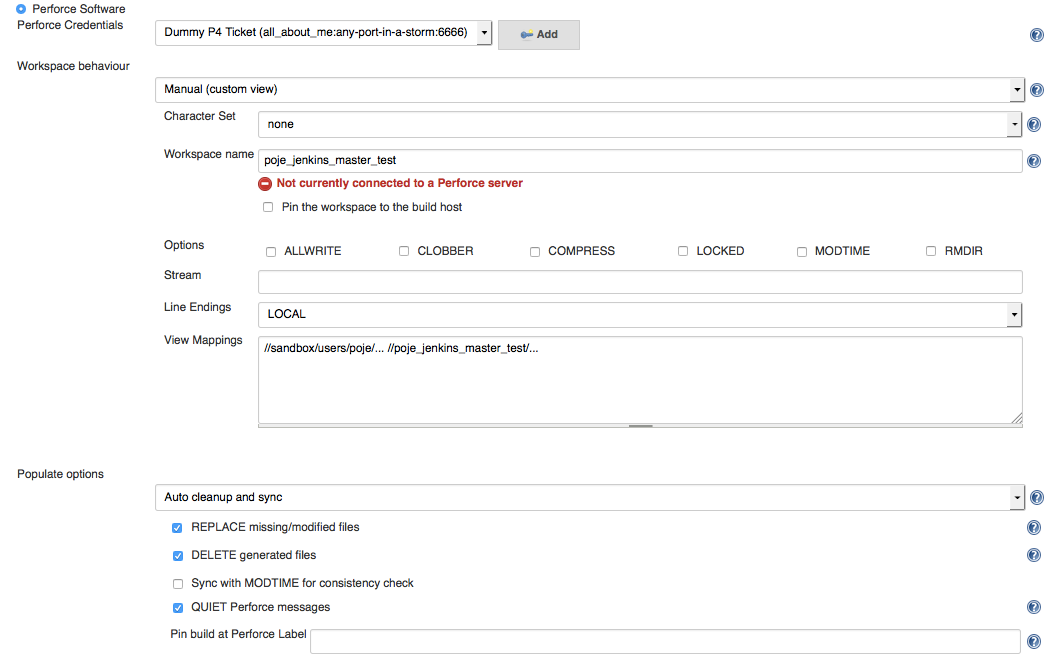
The underlying Jenkins XML of this sample Perforce configuration is found by browsing to the Jenkins project and appending
the string /config.xml to the URL. For example, http://your-jenkins-server/job/DummyTestProject/config.xml
An example of this XML files is:
<?xml version='1.0' encoding='UTF-8'?>
<project>
  <actions/>
  <description></description>
  <keepDependencies>false</keepDependencies>
  <properties/>
  <scm class="org.jenkinsci.plugins.p4.PerforceScm" plugin="p4@1.3.6-ADOBE-SNAPSHOT">
    <credential>##############################</credential>
    <workspace class="org.jenkinsci.plugins.p4.workspace.ManualWorkspaceImpl">
      <charset>none</charset>
      <pinHost>false</pinHost>
      <name>poje_jenkins_master_test</name>
      <spec>
        <allwrite>false</allwrite>
        <clobber>false</clobber>
        <compress>false</compress>
        <locked>false</locked>
        <modtime>false</modtime>
        <rmdir>false</rmdir>
        <streamName></streamName>
        <line>LOCAL</line>
        <view>//sandbox/users/poje/... //poje_jenkins_master_test/...</view>
      </spec>
    </workspace>
    <populate class="org.jenkinsci.plugins.p4.populate.AutoCleanImpl">
      <have>true</have>
      <force>false</force>
      <modtime>false</modtime>
      <quiet>true</quiet>
      <pin></pin>
      <replace>true</replace>
      <delete>true</delete>
    </populate>
  </scm>
You can use the Job-DSL-Plugin to automate the creation of a new Jenkins job with the same Perforce configuration.
Here's a simplified Groovy script example for building a new project named "auto-created-project" that contains the same SCM Perforce configuration as the original "Dummy Test Project".
import org.apache.commons.lang.SystemUtils

// Start Job creation.
job("auto-created-project") {
	concurrentBuild(allowConcurrentBuild = false)
	disabled(shouldDisable = true)
	label("Win")
	logRotator(daysToKeep = 7, numToKeep = 10, artifactDaysToKeep = 7, artifactNumToKeep = 10)

	configure { project ->
		project.remove(project / scm) // remove the existing 'scm' element

		project / scm(class: 'org.jenkinsci.plugins.p4.PerforceScm') {

			credential 'fe40e7cf-902b-4de8-ab6a-b7f0cb1a9f6f'

			workspace(class :'org.jenkinsci.plugins.p4.workspace.ManualWorkspaceImpl') {
				charset 'none'
				pinHost 'false'
				name 'poje_jenkins_master_test'

				spec {
					allwrite 'false'
					clobber 'false'
					compress 'false'
					locked 'false'
					modtime 'false'
					rmdir 'false'
					streamName ''
					line 'LOCAL'
					view '//sandbox/users/poje/... //poje_jenkins_master_test/...'
				}
			}

			populate(class:'org.jenkinsci.plugins.p4.populate.AutoCleanImpl') {
				have 'true'
				force 'false'
				modtime 'false'
				quiet 'true'
				pin ''
				replace 'true'
				delete 'true'
			}
		}
	}
}
References
Generic documentation about the DSL Configuration block is located here.