Multibranch pipeline setup
Multibranch Pipeline support in Jenkins allows you to automatically discover branches and change reviews in Perforce, and create Pipeline jobs to build them.
Perforce can represent projects and branches in several ways, because of this the plugin provides four different SCMSource options:
- P4 branches - build from standard Perforce depot branches.
- P4 streams - build directly from Perforce streams.
- P4 Code Review - build from code reviews managed in P4 Code Review (formerly Helix Swarm).
- Git Connector - build from Git repositories hosted in Git Connector (formerly Helix4Git).
Add a new Multibranch Pipeline
To add a Multibranch Pipeline, follow these steps to create a Pipeline and begin configuring its settings.
- From the Jenkins dashboard, click New item from the sidebar menu.
- At the top of the page, enter a name for the new job in the Enter an item name field.
- Click Multibranch Pipeline.
- Click OK to start configuring your new Pipeline job.
- (Optional) Add a description in the Description field.
- Proceed with configuring the pipeline, starting with the definition.
Pipeline configuration
When setting up a Multibranch Pipeline, you need to add one of the different SCMSource options. This is done in the Branch Sources section, using the Add source drop-down menu.
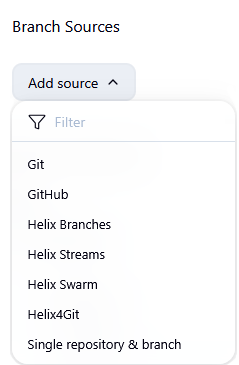
All SCMSource implementations share some common settings:
-
Credentials – Perforce user credentials stored in Jenkins.
-
Perforce paths – Depot or stream paths specific to the implementation.
-
Optional filters – Restrict which branches or reviews are included.
-
Advanced options – Configure populate strategy and repository browsing.
This guide covers the following Pipeline configurations:
P4 branches
P4 Branches let you build multiple branches from Perforce depot paths. Unlike streams, there is no built-in “project” definition to group these paths, so you must define which depot locations Jenkins should treat as branches. When configured, Jenkins will:
-
Scan one directory level below each specified depot path.
-
Look for a Jenkinsfile (or equivalent pipeline definition) in each subdirectory.
-
Use the final folder name in the path as the branch name.
-
Create a Pipeline Job for each valid branch it finds.
Each branch must have a unique name, as Jenkins uses the folder name as the identifier for the job. If two branches share the same name across different depot paths, only one will be retained.
Configuring P4 Branches
-
Credentials – Select a Perforce user credential stored in Jenkins.
-
Include branches – Enter one or more parent depot paths (one per line). Jenkins will search one directory level below each path for a Jenkinsfile (or other pipeline definition). The last directory name is used as the branch name.
Unique Branch Names
Each branch must have a unique name. This is because the folder name becomes the identifier in Jenkins.
For example, with this mapping:
//depot/projects/projA/...
//depot/projects/projB/...
And these directories:
//depot/projects/projA/test
//depot/projects/projA/candidate
//depot/projects/projB/test
//depot/projects/projB/candidate
Jenkins will only keep the following projA branches, because test and candidate are not unique across projects.
//depot/projects/projA/test
//depot/projects/projA/candidate
Filtering Branches
You can use the Include filter to match only the branches you want. For example, with this depot layout:
/depot/projA/comX
//depot/projA/comY
//depot/projA/comZ
//depot/projA/resA
//depot/projA/resB
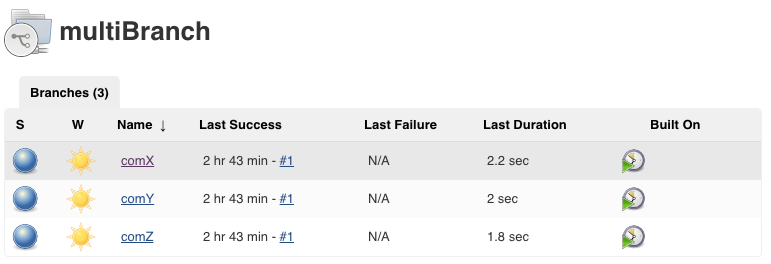
If you set the Include Filter to: .*com.*, Jenkins will create branches for comX, comY, and comZ only. The resA and resB branches will be ignored.
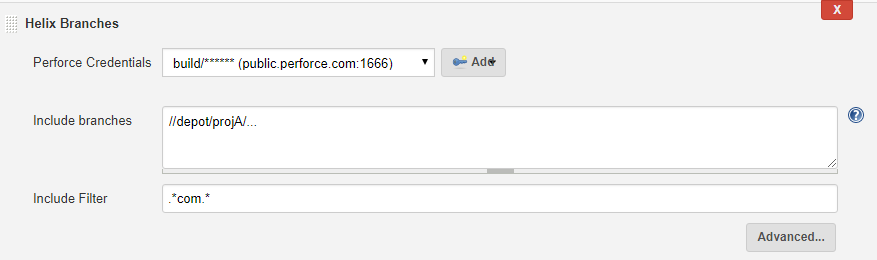
Below is an example of the branches that will be created.
Variable Branch Position
Sometimes, a project branch may appear in different parts of the file path. Use the Enable variable branch position in “Include Branches” setting to control how the branch name is determined from the path specified in the Include branches field. When this setting is selected, the branch name is derived from the position marked by the asterisk (*) in the specified path.
For example, If the path is defined as: //depot/*/main/...
And the depot contains //depot/feature1/main/..., the * is replaced with feature1.
Jenkins then uses feature1 as the branch name.
Additional configurations are available for this type of Multibranch Pipeline, for more information, see Additional building configuration.
P4 streams
P4 Streams allow Jenkins to automatically discover and build child streams from a specified parent stream path in Perforce. This setup is ideal for teams using Perforce Streams to manage branching and development workflows.
When configured, Jenkins will:
-
Probe each child stream under the specified parent stream path.
-
Look for a Jenkinsfile (or equivalent pipeline definition) in each stream.
-
Create a Pipeline Job for each stream that contains a valid pipeline file.
-
Automatically schedule builds for discovered streams.
Configuring P4 Streams
-
Credentials – Select a Perforce user credential stored in Jenkins.
-
Include streams – Enter one or more stream depot paths (one per line). Jenkins will search for child streams under each path.
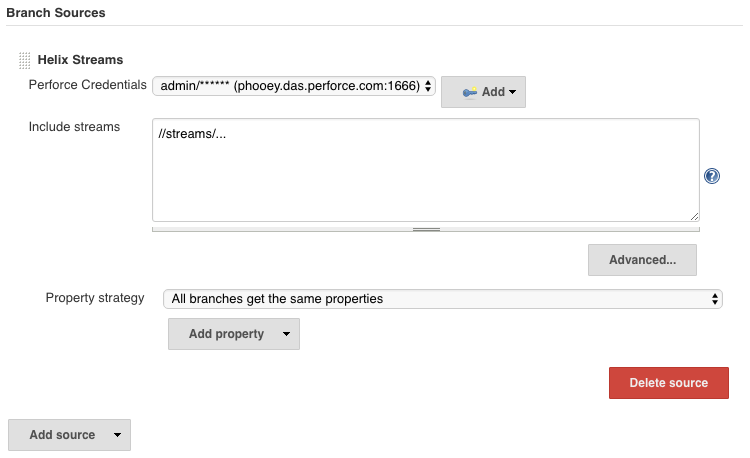
You can provide a list of stream depots in the Include Streams field (separated by new lines) to include multiple streams in the search.
Specifying Stream Paths
You can use exact paths or wildcards to control which streams Jenkins includes. For example
- Enter //streams/mystream, to include only the mystream.
- Enter //streams/... or //streams/*, Jenkins will include all streams under the //streams path.
-
Enter
//streams/mystream...or//streams/mystream*, Jenkins will include all streams that start withmystream, such as:-
//streams/mystream01 -
//streams/mystream02 -
//streams/mystream-new
-
Stream path behavior varies depending on which version of the P4 for Jenkins is installed.
-
In version 1.10.7 and earlier, the plugin automatically adds an asterisk (
*) to the end of each stream path you enter. This means Jenkins will include all child streams under that path by default. -
In version 1.10.8 and later, this behavior was removed. If you want to include multiple streams, you must manually add the asterisk (
*) to each stream path.
P4 Code Review
The P4 Code Review integration allows Jenkins to automatically discover and build pipeline jobs for branches and reviews managed in a P4 Code Review project. This setup is ideal for teams using P4 Code Review or similar tools to manage pre- and post-commit reviews in Perforce.
When configured, Jenkins will:
-
Query the specified P4 Code Review project using the Code Review API.
-
Identify branches associated with the project.
-
Probe each branch for a Jenkinsfile (or equivalent pipeline definition).
-
Create a Pipeline Job for each valid branch.
-
Detect open reviews (pre- and post-commit) and create separate Pipeline Jobs for each.
-
Display review-related jobs in a dedicated Reviews tab, separate from the default Branches tab.
Configuring P4 Code Review
-
Credentials – Select a Perforce user credential stored in Jenkins. These credentials must be configured to work across all hosts. For more information, see How to Enable “All Hosts” for Perforce credentials in Jenkins.
-
Swarm Project – Enter the name or ID of the P4 Code Review project you want Jenkins to monitor (e.g.,
multiBranchInP4CR).
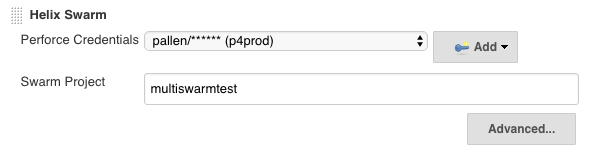
The P4 Plugin uses the P4 Code Review API to query the branches associated with a given P4 Code Review project. It then probes each branch for a Jenkinsfile to create the corresponding Pipeline build.
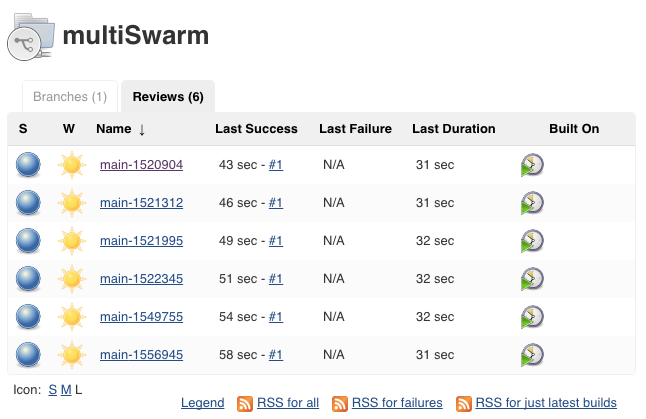
In addition to scanning branches, the plugin also queries the project for open reviews, both pre-commit and post-commit. For each review that contains a valid pipeline file, Jenkins creates a separate Pipeline Job. These review-based jobs are displayed in a dedicated Reviews tab, separate from the default Branches tab.
How to Enable “All Hosts” for Perforce credentials in Jenkins
To enable All Hosts for your Perforce credentials in Jenkins:
-
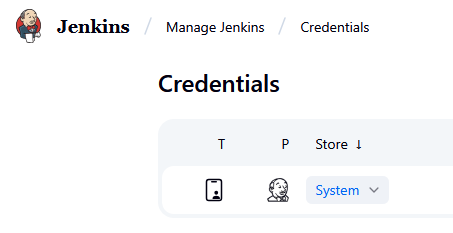
Go to Manage Jenkins > Credentials.
-
Find your credentials in the table.
-
In the Store column, click the System hyperlink (or the equivalent link in your table).
-
Click on Global credentials.
-
On the right side of the table, click the edit icon.
-
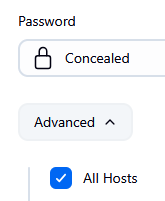
Click the Advanced dropdown.
-
In the expanded section, select the All Hosts checkbox.
-
Click Save.
This setting allows Jenkins to use the credential from any host machine, which is essential for distributed builds or agents running on different nodes.
Git Connector
The P4 Git Connector allows Jenkins to build pipeline jobs from Git repositories hosted in a P4 graph depot
A P4 graph depot in is a type of Perforce depot designed to store and manage Git repositories. It supports Git-native workflows while still being part of the Perforce ecosystem. This integration supports teams working with Git workflows by combining distributed development with robust version control. When configured, Jenkins will:
-
Connect to one or more Git repositories hosted in a P4 graph depot.
-
Scan each repository for branches and open pull requests.
-
Look for a Jenkinsfile (or equivalent pipeline definition) in each branch or PR.
-
Create a Pipeline Job for each valid branch and pull request.
-
Automatically schedule builds based on changes detected in the repository.
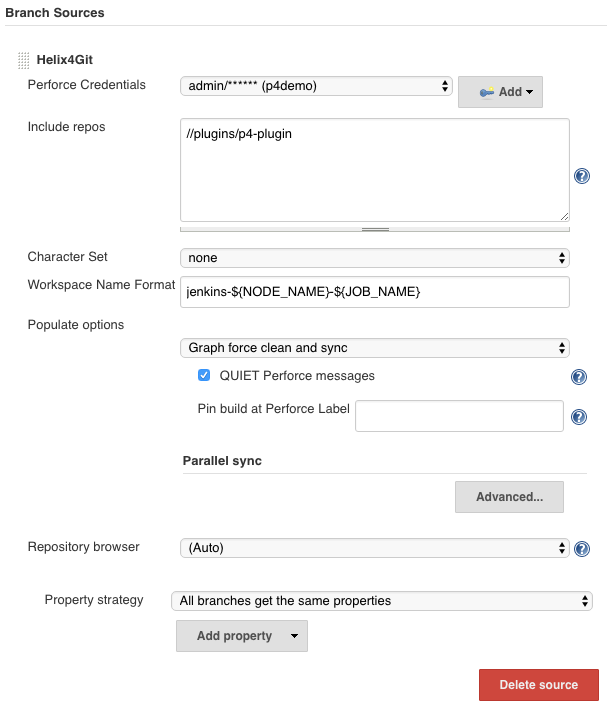
To set up Git Connector in Jenkins:
-
Credentials – Select your Perforce user credentials stored in Jenkins.
-
Include Repos – Enter one or more paths for a Git repository within graph depot. For example, the depot //plugins with a Git Repository p4-plugin, would be entered as
//plugins/p4-plugin -
Populate option - This is an advanced setting. Graph-based syncs support a limited set of populate options. Select Graph force clean and sync to ensure a clean workspace and consistent builds across branches and pull requests.
Job naming conventions
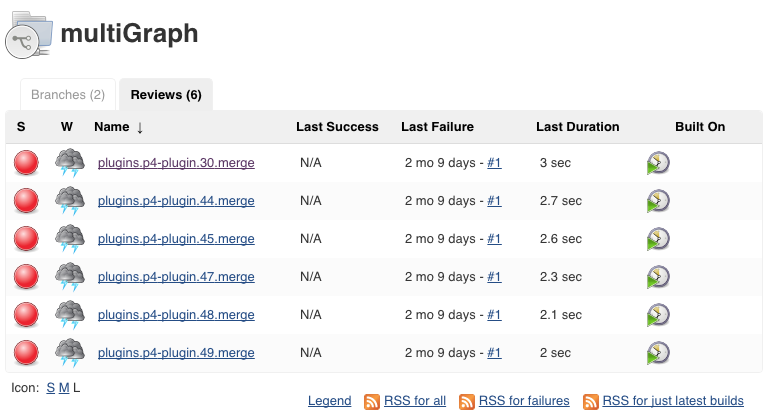
The P4 Plugin scans all Git branches and open pull requests, building Pipeline Jobs as required. Due to the many-to-many relationship between repositories and branches, Jenkins uses a naming convention to distinguish jobs for branches and pull requests.
For branches:
{depot}.{repo}.{branch}
For pull requests:
{depot}.{repo}.{branch}.{ref}
Additional building configuration
This section outlines the additional building configuration options for you multibranch pipeline setup.
Jenkinsfile Script Path
If your Jenkinsfile is located in a subdirectory or uses a custom filename, Jenkins allows you to configure the Script Path in the build settings. This ensures Jenkins can locate and execute your pipeline script correctly.

Lightweight checkout or default checkout
Lightweight checkout is supported only for pipeline scripts written using the pipeline { ... } syntax, not the older node { ... } format.
If your workspace contains a large number of files, you may want to disable the default checkout to avoid syncing the entire workspace unnecessarily.
Multibranch Pipelines automatically use lightweight checkout. To disable the default checkout, add the following to your Jenkinsfile:
pipeline {
    agent any

    options { skipDefaultCheckout() }

    stages {
        stage('Checkout') {
            steps {
                p4sync credential: 'id', populate: forceClean(), source: streamSource('//stream/main')
            }
        }
        stage('Build') {
            steps {
                echo 'Building...'
            }
        }
        stage('Test') {
            steps {
                echo 'Testing...'
            }
        }
        stage('Deploy') {
            steps {
                echo 'Deploying...'
            }
        }
    }
}
Multibranch triggering using SCM events
Perforce can trigger Jenkins builds for Multibranch jobs based on SCM events, such as a submitted changelist.
To enable this:
-
An administrator must configure a Perforce trigger on the P4 Server.
-
The trigger should POST a JSON payload to the Jenkins endpoint:
JENKINS_URL/p4/event/
For information about adding a trigger, see Using triggers to customize behavior in P4 Server Administration Documentation.
Perforce change trigger payload
This is a JSON-formatted message sent from the P4 Server to Jenkins to notify it that a changelist has been submitted and a build should be triggered.
{
  "p4port":      P4PORT,          Perforce P4PORT (must match the Jenkins Credential)
  "change":      10001,           Change number to sync files for build
  "event_type":  "UPDATED"        Event type (currently only UPDATED is supported)
}
P4 Code Review commit trigger payload
This is a JSON message sent from P4 Code Review to Jenkins when a code review is committed. It acts as a build trigger, telling Jenkins that a reviewed changelist has been submitted and should now be built.
{
  "p4port":            P4PORT,          Perforce P4PORT (must match the Jenkins Credential)
  "swarm_project":     PROJECT,         Swarm Project id
  "swarm_branch":      BRANCH,          Swarm Branch id
  "swarm_path":        PATH,            Swarm Path id
  "change":            10001,           Change number to sync files for build
  "status":            "committed",     Change status is "committed"
  "event_type":        "UPDATED"        Event type (currently only UPDATED is supported)
}
P4 Code Review shelved trigger payload
This is a structured message sent from P4 Code Review to Jenkins when a shelved changelist is associated with a code review. It’s used to trigger a Jenkins build that unshelves the changelist and builds it, typically for pre-commit testing or review validation.
{
  "p4port":            P4PORT,          Perforce P4PORT (must match the Jenkins Credential)
  "swarm_project":     PROJECT,         Swarm Project id
  "swarm_branch":      BRANCH,          Swarm Branch id
  "swarm_path":        PATH,            Swarm Path id
  "change":            10001,           Change number to sync files for build
  "review":            10022,           Review number to unshelve for build
  "status":            "shelved",       Change status is "shelved"
  "event_type":        "UPDATED"        Event type (currently only UPDATED is supported)
}