Connecting to P4 Server
To perform P4 Server version control actions on files in File Explorer, you must be connected to a P4 Server, also referred to as P4 Server, with a valid user and workspace See client workspace..
Set Connection dialog configuration
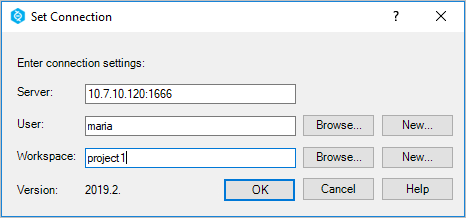
The graphical user interface provides a convenient Set Connection dialog.
Enter the values for your Server, user name, and workspace, then click OK.
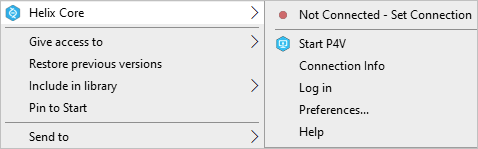
When you are connected, you can Log off by using the More... menu.
Command-line configuration
If you do not want to use Set Connection dialog, consider the command-line alternatives.
You can set these connection variables in
the Windows environment, per directory with a P4CONFIG file, or a
combination of both. (Note that P4CONFIG files will override Windows
environment settings for the current working directory.)
To set P4 Server variables in the Windows environment:
- Open a command window.
-
Set the individual P4 Server variables with the following commands:
- Server:
p4 set P4PORT=<server:port> - User:
p4 set P4USER=<user_name> - Workspace:
p4 set P4CLIENT=<workspace_name>
- Server:
- Open File Explorer and navigate to a location under the
workspace root defined by the workspace named in
P4CLIENT.
To set P4 Server variables with P4CONFIG files:
- Open a command window.
-
Set the P4 Server variable for
P4CONFIGwith the following command:- P4CONFIG:
p4 set P4CONFIG=<config_file_name>
- P4CONFIG:
-
For each workspace root location on the local disk, create a file named
<config_file_name>; inside the file add:# # P4 configuration file # P4PORT=<server:port> P4USER=<user_name> P4CLIENT=<workspace_name>
- Open File Explorer and navigate to a location under a
workspace root containing a
P4CONFIGfile.
Environment variables should be an adequate way to set connection
settings if you are working with a single server, user, and
workspace. If you have more than one workspace that you use on a
regular basis, you may benefit from the flexibility of using
P4CONFIG files.
For additional information, see: