Configuring Perforce Server connections and working offline
Install P4 for Eclipse and define connections
To install P4 for Eclipse:
-
Open Eclipse.
-
Click on Help > Install New Software.
-
In the Install dialog window, enter the URL to download P4 for Eclipse into the Work With field. An example of the URL is:
https://filehost.perforce.com/perforce/tools/http/p4-eclipse/install/4.32/ -
Click Add.
-
This should find the two Perforce Team Providers. Select both of these providers and click on next.
-
Click through the installation wizard to complete the installation of P4 for Eclipse
The installation of P4 for Eclipse takes several minutes to complete. -
After everything is installed, restart Eclipse.
-
If P4 for Eclipse has been installed should see a little helix icon (
 ) within the app.
Define connections
Connections enable you to browse the P4 Server (P4D) to import projects and obtain access to files under Perforce control. You define connections in the P4 Connections view of the Perforce perspective. To define a connection, you specify the server host and port, your Perforce user name, and the name of the Perforce client workspace associated with your Eclipse project.
To define a connection:
-
Click on File > New > Other.
-
Under the Perforce folder, select Perforce Connection.
- In the Perforce Server Connection Wizard, enter the connection settings and click Next.
- Server: Use the format
protocol:hostname:portfor the P4 Server (for examplessl:myp4server.example.com:1777) - Charset: Set only if the P4 Server is running in Unicode mode.
- User: Your Perforce user name
- Password: Your Perforce password
- Select the Perforce client workspace to use or create a new workspace.
- (Optional) Uncheck "Launch Perforce Import Wizard to import depot folders as Eclipse projects" if you do not want to import the project from the connection.
- Click Finish.
If P4 AS is configured for your P4 Server a web page will open and you will be directed to the sign in process used by your Identity Provider (IdP).
Your newly-defined connection is listed in the P4 Connections view.
Workspaces: Perforce vs. Eclipse
Both Perforce and Eclipse define workspaces, that is, managed directories that contain local copies of files. Eclipse projects that are managed by Perforce must reside under the client root directory. To ensure that you do not check in machine-specific Eclipse files (which creates problems for other developers who import your projects), keep the Eclipse and Perforce workspaces separate, that is, ensure that neither workspace resides inside the other.
When you create new projects and check them into Perforce, the final location of the project must be in the Perforce workspace. Share Project Wizard can help you move the project into Perforce workspace automatically.
The Perforce client workspace is configured by editing its client specification. To edit the client specification, right-click the corresponding connection in the P4 Connections view and choose Edit Perforce client...
Working offline
Set a connection to Work Offline:
- Go to the Perforce perspective.
- Select the connection.
- Right-click on the connection, select Work Offline.
If P4 AS is configured for your P4 Server, setting the connection to Work Offline might not invalidate your Identity Provider (IdP) login status. If you try to set the connection to Work Online while your IdP status is still valid, you will not be prompted to complete the log in steps. To avoid this, log out from your IdP page before setting the connection to Work Offline.
Set a connection to Work Online:
- Go to the Perforce perspective.
- Select the offline connection.
- Right-click on the connection, select Work Online.
- To detect files that differ from the depot, select your project in the Navigator pane.
- Right-click the project, select Team > Check Consistency...
If P4 AS is configured for your P4 Server a web page will open and you will be directed to the sign in process used by your Identity Provider (IdP).
Perforce Connection Error
If P4 for Eclipse cannot connect to a P4 Server to perform an operation, it displays the following prompt:
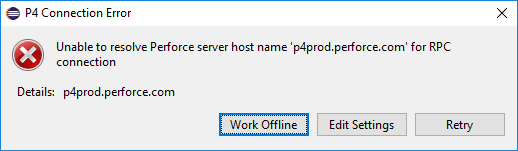
To continue with the current connection settings, click Work Offline. If you work offline, you must reconcile any changes you make with the Perforce depot when the server connection is restored. You must add newly-created files, check in changed files, and delete files from the depot that you have deleted from the project. To detect files that differ from the depot, right-click the project in the Navigator pane and choose Team > Check Consistency...
If you have chosen to work offline, note that, by default, P4 for Eclipse retries the connection the next time you launch Eclipse. If you expect to work offline for an extended period of time, you can disable the retries (and the resulting error messages) by enabling the Team > Perforce preference Retain offline connection state between Eclipse sessions.