Queue Info
To display the P4 Code Review task queue information, click the Queue Info tab
We recommend that you set up a recurring task to spawn workers automatically. To learn more, see Set up a recurring task to spawn workers.
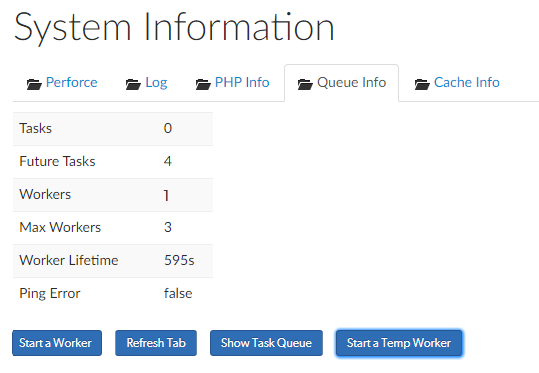
- Tasks: displays the number of tasks in the queue. If the task queue keeps growing, consider increasing the number of workers.
- Future Tasks: displays the number of future tasks in the queue. There are usually at least four future tasks in the queue for checking cache integrity, but there can be more. For example, when a user is making comments, the comment notification is delayed by 30 minutes by default. This is a future task.
- Workers: displays the number of workers available to service tasks.
If the number of Workers is 0 (zero):
- Your workers are not being created automatically. For instructions on how to set up a recurring task to spawn workers automatically, see Set up a recurring task to spawn workers.
- To process the current task queue while you get your recurring tasks working again, click Start a Temp Worker. This is a quick way to get P4 Code Review running again while you fix the problem.
- Max Workers: displays the maximum number of workers that are allowed. The default is three.
- Worker Lifetime: displays the worker lifetime that is configured. The default is 595 seconds (10 minutes less 5 seconds).
- Ping Error: not used.
Queue Info buttons:
- Start a Worker button, only available if Workers is less than the Max Workers setting: click to manually start a new P4 Code Review worker. The new worker will only last for the configured Worker Lifetime. If the number of workers running matches the configured limit, the new worker is not started.
If your recurring task has stopped working and you need to process the task queue while you get it working again, start a temporary worker by clicking Start a Temp Worker. This is a quick way to get P4 Code Review running again while you fix the problem.
- Refresh Tab button: click to refresh the queue information in the tab.
- Show Task Queue button: click to display the Task Queue information. When the task queue is displayed the button changes to Hide Task Queue. The task queue shows more information about the tasks and future tasks in the queue.
- Start a Temp Worker button, only available if Workers is less than the Max Workers setting: click to manually start a P4 Code Review temporary worker. Typically you use a temporary worker to process the current tasks in the queue while you fix the recurring task that automatically spawns the workers.
This is a special P4 Code Review worker that is not subject to the worker lifetime setting and will not stop until it has processed all of the tasks in the current queue or one of the tasks fails.
Task Queue
To display the tasks in the P4 Code Review queue, click the Show Task Queue button.
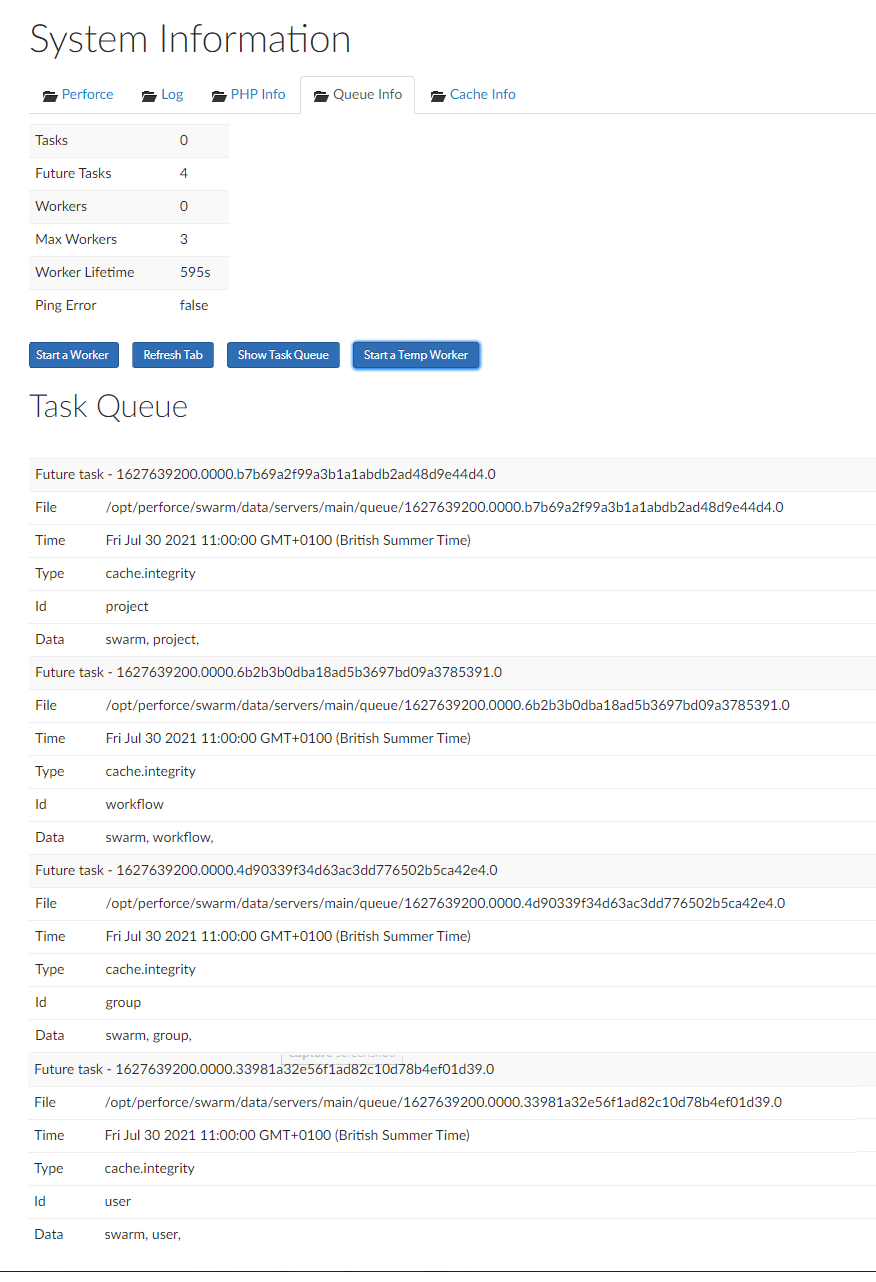
If the task queue keeps growing, consider increasing the number of workers.