Cache Info
To display the P4 Code Review cache information, click the Cache Info tab.
On this page:
Overview
By default, P4 Code Review runs a regular verification check at 03:00 every day to make sure that the Redis caches and P4 Server are in sync. To learn more, see Redis connection settings.
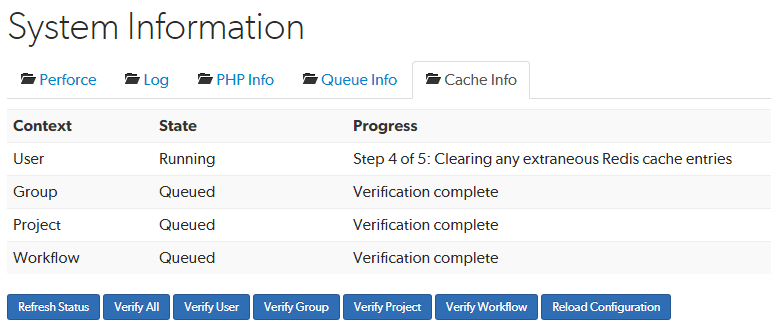
The Cache Info tab displays the cache verification state and progress for each of the Redis caches:
- Valid states for verify are; Not Queued, Queued, Running, and Failed.
- Valid states for progress are, Step x of y; (where x is the current step and y is the total number of steps) followed by:
- Getting Redis cache entries
- Calculating checksums for Redis keys
- Calculating checksums for Perforce models
- Clearing any extraneous Redis cache entries
- Indexing any missing Perforce models into the Redis cache
- Verification complete
Project cache statistics
Project cache statistics are updated when project data is written to the cache and during cache rebuild and verification operations. To review project cache usage statistics and identify oversized projects, see Project Cache.
Refresh Status button
To refresh the cache information on the tab, click Refresh Status.
Verify buttons
In normal operation, the Redis cache and P4 Server data are in sync and there is no need to verify the caches. However, in some circumstances, such as if changes are made in the P4 Server when P4 Code Review is down, or if errors occur during updates, the Redis cache might become out of sync with the P4 Server.
On P4 Code Review systems with a large number of users, groups, and projects verification of the caches can take some time and can impact performance.
In normal operation, the Redis cache and P4 Server data should stay in sync and there is no need to verify the caches.
If you have a large number of users, groups, and projects, we recommend that you verify the individual user and group caches rather than using Verify All.
If you suspect that you have a cache issue, the verify buttons enable you to manually verify the caches. If verification finds the cache is out of sync with the P4 Server, P4 Code Review automatically updates the data in that cache.
For example, to verify the User cache:
- Navigate to the Cache Info tab on the P4 Code ReviewSystem Information page.
- Click Verify User.
P4 Code Review responds with a message to say that it has successfully verified the user cache.
Reload Configuration button
The P4 Code Review configuration is stored in the SWARM_ROOT/data/config.php file. If you make a configuration change, P4 Code Review will not use it until the configuration cache has been deleted and reloaded, this forces P4 Code Review to use the new configuration.
To delete and reload the P4 Code Review configuration cache:
- Navigate to the Cache Info tab on the P4 Code ReviewSystem Information page.
- Click Reload Configuration.
P4 Code Review responds with a message indicating that it has successfully reloaded the config.
P4 Code Review is now using the updated config.php file.