Moving your P4 Code Review instance
This section describes how to move your P4 Code Review instance to another server. This can be useful if you want to move P4 Code Review to a different server to improve performance or if you want to run P4 Code Review on a newer operating system. P4 Code Review data is held on the P4 Server and not in P4 Code Review so there is no need to migrate any data to your new P4 Code Review instance.
If you are installing a newer version of P4 Code Review than your original P4 Code Review instance, you might need to configure options if they are not already present in you original version of P4 Code Review.
For example, P4 Code Review workflow, updated trigger scripts, the introduction of Extensions, the introduction of a Redis cache, and changes to custom modules. For information on important changes to P4 Code Review, see the Important information section of the P4 Code Review What’s new in P4 Code Review page.
There is a risk of P4 Code Review missing data updates if P4 Code Review has been shut down while P4 Server is running and users are executing P4 Server commands.
When P4 Code Review is offline, workflow triggers will fail which could cause P4 Server to stop working.
Summary
Moving your P4 Code Review installation to a new server results in downtime, but the following process minimizes it. The process for moving your P4 Code Review installation to another server is summarized below:
-
Install P4 Code Review on a new server.
-
Copy your original P4 Code Review config.php file and authentication token to your new P4 Code Review instance.
-
Only required if you are moving to a newer version of P4 Code Review: Configure your new P4 Code Review instance to receive event notifications from the P4 Server.
-
Shutdown your original P4 Code Review instance and start your new P4 Code Review instance .
Downtime occurs at this step. -
Validate that your new P4 Code Review instance is working correctly.
For step by step instructions for moving your P4 Code Review instance, start by Installing P4 Code Review on your new server.
Installing P4 Code Review on your new server
Choose one of the following installation methods (we recommend the package installation method whenever possible):
-
Install and configure P4 Code Review from a package (recommended). Do not follow the Post-installation configuration steps. Copy your original P4 Code Review config.php file to your new P4 Code Review instance, see Copying your existing P4 Code Review configuration.
-
Install and configure P4 Code Review manually from a Tarball, configure Redis, configure Apache, and configure PHP. Copy your original P4 Code Review config.php file to your new P4 Code Review instance, see Copying your existing P4 Code Review configuration.
Copying your existing P4 Code Review configuration
-
Copy your original SWARM_ROOT/data/config.php file to your new P4 Code Review instance.
-
Create the queue token directory on your new P4 Code Review instance:
mkdir SWARM_ROOT/data/queue
-
Copy your original trigger token(s) from the SWARM_ROOT/data/queue/tokens to your new P4 Code Review instance.
-
Assign correct ownership to the new P4 Code Review instance data directory:
sudo chown -R www-data SWARM_ROOT/data
The www-data user above is an example of what the web server user name might be, and can vary based on distribution or customization. For example, the user is typically apache for Red Hat and www-data for Debian/Ubuntu.
-
Do one of the following:
-
If moving to an instance with the same P4 Code Review version: go to Replacing your original P4 Code Review instance with your new instance.
-
If moving to an instance with a newer version of P4 Code Review: go to Configuring P4 Server event notification.
-
Configuring P4 Server event notification
The steps in this section are only required if you are moving your P4 Code Review instance to a newer version of P4 Code Review. If the new and original P4 Code Review instances are the same P4 Code Review version, go to Replacing your original P4 Code Review instance with your new instance.
P4 Code Review needs to know about a number of P4 Server events to operate correctly, this can be done by using P4 Server Extensions or P4 Server Triggers.
You must configure your new P4 Code Review instance to receive event notifications from the P4 Server to complete the P4 Code Review move.
Do one of the following so that P4 Code Review is notified about events on the P4 Server:
-
If your old P4 Code Review instance is using P4 Server Extensions: update the P4 Code Review P4 Server extension configuration, see Updating your P4 Code Review P4 Server extension
-
If your old P4 Code Review instance is using P4 Server Triggers: update your P4 Code Review Triggers, see Updating your triggers
Updating your P4 Code Review P4 Server extension
You must be a user with super user permissions to configure P4 Server Extensions.
If you are moving a P4 Code Review instance that is already using P4 Server Extensions, there is no need to reinstall the extension because it is already installed on P4 Server.
To update your P4 Code Review P4 Server extension:
-
Open the extension configuration file with:
-
Edit the configuration for your new P4 Code Review instance as required.
-
Swarm-URL: do one of the following:
-
If the hostname of your P4 Code Review server has changed: set the Swarm-URL to the URL of your new P4 Code Review server instance.
-
If the P4 Code Review server hostname has not changed: you do not need to change the Swarm-URL in the configuration file.
-
-
Save the configuration changes.
-
Continue with the next task, see Replacing your original P4 Code Review instance with your new instance.
p4 extension --configure Perforce::helix-swarm
The spec file opens in your text editor
Updating your triggers
If you are using P4 Code Review P4 Server Triggers, the P4 Code Review P4 Server extension must not be installed.
-
Copy the new P4 Code Review trigger script to your P4 Server machine. The trigger script is
SWARM_ROOT/p4-bin/scripts/swarm-trigger.pl, and requires installation of Perl 5.08+ (use the latest available) on the P4 Server machine. If P4 Code Review is using SSL, then the triggers also require theIO::Socket::SSLPerl module.Do not overwrite any existing trigger script at this time. Give the script a new name, for example:
swarm-trigger-new.pl. -
Configure the P4 Code Review trigger script by creating, in the same directory on the P4 Server machine,
swarm-trigger.conf. It should contain:If you already have a
swarm-trigger.conffile, no additional configuration is required.# SWARM_HOST (required) # Hostname of your Swarm instance, with leading "http://" or "https://". SWARM_HOST="http://my-swarm-host" # SWARM_TOKEN (required) # The token used when talking to Swarm to offer some security. To obtain the # value, log in to Swarm as a super user and select 'About Swarm' to see the # token value. SWARM_TOKEN="MY-UUID-STYLE-TOKEN" # ADMIN_USER (optional) Do not use if the Workflow feature is enabled (default) # For enforcing reviewed changes, optionally specify the normal Perforce user # with admin privileges (to read keys); if not set, will use whatever Perforce # user is set in environment. ADMIN_USER= # ADMIN_TICKET_FILE (optional) Do not use if the Workflow feature is enabled (default) # For enforcing reviewed changes, optionally specify the location of the # p4tickets file if different from the default ($HOME/.p4tickets). # Ensure this user is a member of a group with an 'unlimited' or very long # timeout; then, manually login as this user from the Perforce server machine to # set the ticket. ADMIN_TICKET_FILE= # VERIFY_SSL (optional) # If HTTPS is being used on the Swarm web server, then this controls whether # the SSL certificate is validated or not. By default this is set to 1, which # means any SSL certificates must be valid. If the web server is using a self # signed certificate, then this must be set to 0. # set the ticket. VERIFY_SSL=1
Fill in the required SWARM_HOST and SWARM_TOKEN variables with the configuration from any previous P4 Code Review trigger script, typically
swarm-trigger.pl.The ADMIN_USER and ADMIN_TICKET variables were used by the 'enforce triggers' in P4 Code Review 2019.1 and earlier. They can be removed unless you are explicitly disabling workflow and using the deprecated 'enforce triggers'.
P4 Code Review 2015.4 and earlier: P4 Code Review trigger script files were available as shell scripts in these earlier P4 Code Review versions, typically
swarm-trigger.sh.P4 Code Review must now use a Perl trigger script file, typically
swarm-trigger.pl. -
On Linux: ensure that the script is executable:
sudo chmod +x swarm-trigger-new.pl
-
Rename the new trigger script:
On Linux:
mv swarm-trigger-new.pl swarm-trigger.pl
On Windows:
ren swarm-trigger-new.pl swarm-trigger.pl
-
Update the triggers in your P4 Server.
-
The swarm.shelvedel shelve-delete trigger line was added to P4 Code Review in version 2018.1 and updated in version 2020.1.
- Upgrading from P4 Code Review 2017.4 and earlier: add the
swarm.shelvedel shelve-deletetrigger line to the P4 Server trigger table if it is not already present, see Update the P4 Server triggers table to run the trigger script. - Upgrading from P4 Code Review 2018.x and 2019.x: replace the existing
swarm.shelvedel shelve-deletetrigger line in the P4 Server trigger table with the one supplied in the P4 Code Review version you are upgrading to.
- Upgrading from P4 Code Review 2017.4 and earlier: add the
-
Workflow feature:
The Workflow feature is enabled by default in P4 Code Review 2019.2 and later. The trigger lines required when workflow is enabled are different to those required when workflow is disabled:
- Workflow feature enabled (default):
- Comment out the swarm.enforce.1, swarm.enforce.2, swarm.strict.1, and swarm.strict.2 trigger lines in the P4 Server trigger table if they are present, see Update the P4 Server triggers table to run the trigger script.
- Add the
swarm.enforce change-submit,swarm.strict change-content, andswarm.shelvesub shelve-submittrigger lines to the P4 Server trigger table if they are not already present, see Update the P4 Server triggers table to run the trigger script.
- Workflow feature disabled:
Comment out the
swarm.enforce change-submit,swarm.strict change-content, andswarm.shelvesub shelve-submittrigger lines in the P4 Server trigger table if they are present, see Update the P4 Server triggers table to run the trigger script.
- Workflow feature enabled (default):
-
Run the P4 Code Review trigger script to capture (using Ctrl+C on Windows and Linux) the trigger lines that should be included in the Perforce trigger table:
On Linux:
./swarm-trigger.pl -o
On Windows:
path/to/perl swarm-trigger.pl -o
- As a Perforce user with super privileges, update the Perforce trigger table by running
p4 triggerscommand and replacing anyswarm.*lines with the previously captured trigger line output (using Ctrl+V on Windows and Linux).
If you previously customized the P4 Code Review trigger lines, perhaps to apply various Trigger options, be sure to repeat those customizations within the updated trigger lines.
-
-
Continue with the next task, see Replacing your original P4 Code Review instance with your new instance.
Replacing your original P4 Code Review instance with your new instance
Downtime occurs in this step.
Replace your original P4 Code Review instance with your new P4 Code Review instance.
-
Stop your original P4 Code Review instance:
-
Start your new P4 Code Review instance:
-
Continue with the next task, see Validating your new P4 Code Review instance.
sudo apache2ctl stop
sudo apache2ctl start
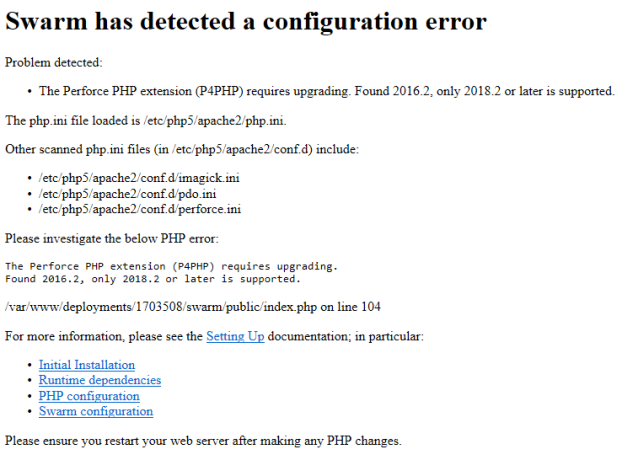
If you see the following error message when you start P4 Code Review, P4 Code Review is using the wrong version of P4 API for PHP. The latest version of P4 API for PHP is included with P4 Code Review.
If you are installing P4 Code Review from a tarball, you must configure P4 Code Review to use that version of P4 API for PHP. For instructions about how to configure P4 Code Review to use the new version of P4 API for PHP, see PHP configuration.
Validating your new P4 Code Review instance
When P4 Code Review starts it verifies the Redis cache, during this time you cannot log in to P4 Code Review. The time taken to verify the Redis cache depends on the number of users, groups, and projects P4 Code Review has. Start-up time can be improved by persisting the memory cache. You can persist the memory cache by disabling background saves and enabling append saves in the redis-server.conf file, see Redis server configuration file.
Check that your upgraded P4 Code Review instance is working correctly by doing the following:
- Create a new changelist that:
- Contains at least one modified file
- Contains the #review keyword in the changelist description
- Right click on the new changelist in P4V and click Shelve Files...
- Check that a new review is created for the changelist.
- If a review is created, the P4 Code Review P4 Server extension is working. If you are using P4 Code Review P4 Server Triggers instead of the P4 Code Review P4 Server extension and the review is created, the triggers are working.
- If a review is not created, see Review not created.
Do not select Request New Review... because this method uses the API and will not fully test the P4 Code Review P4 Server extension.
This is also true if you are using P4 Code Review P4 Server Triggers instead of the P4 Code Review P4 Server extension.
-
Do one of the following:
-
If your new P4 Code Review instance is working correctly: Retire your original P4 Code Review instance.
-
If your new P4 Code Review instance is not working correctly: Shutdown the new P4 Code Review instance, remove any updates you made to the triggers or extensions on the P4 Server, and switch back to your original P4 Code Review instance. Check the configuration and connectivity of your new P4 Code Review instance. If you can't find the issue, you can submit a Support Request.
-