Change the review state
Every asset and bundle in a review has a state that is tracked on the project Kanban board. For example, you can see the progress of a review through its lifecycle, from creation through to release. You can change the state on the asset, on the bundle, or on the Kanban board. To learn more about the Kanban board, see Kanban board.
If you cannot change the state of an asset or bundle in review, a transition rule is restricting the change. See Edit company workflows.
On this page:
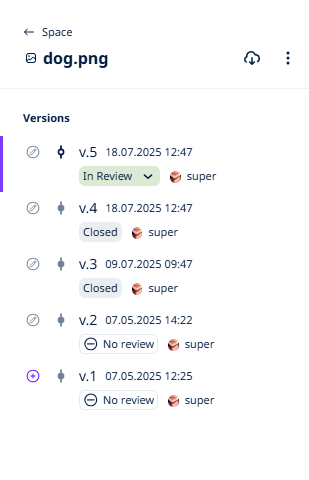
Change the state on an asset review
- Open the asset in a project. See Browse projects.
-
In the asset version list, select the current state.
A dropdown opens.
-
Select a review state from the list.
The review state is updated. The asset is now in the column for the selected state on the Kanban board.
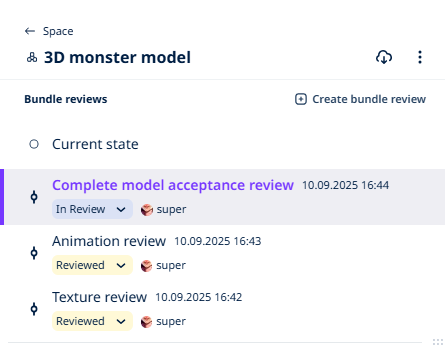
Change the state on a bundle review
- Open the bundle in a project.
-
In the Bundle reviews list, select the current state of the review to change.
A dropdown opens.
-
Select a review state from the list.
The review state is updated. The bundle is now in the column for the selected state on the Kanban board.
Change the state on the Kanban board
-
Open the asset or bundle in a project.
-
From the project navigation page, select Kanban board.
The board opens.
-
Drag an asset or bundle from its current column to a new column.
The review state is updated.