Installing P4 API for Perl
There are several ways to install P4 API for Perl:
In each case, ensure you have met all the criteria of the prerequisites
Prerequisites
-
Ensure your machine meets the system requirements. For information, see System Requirements and Release Notes.
- The latest version of P4 API for Perl requires Strawberry Perl 5.38. Download the latest version from the Strawberry Perl website.
Install P4 API for Perl with installer file
The easiest way to install P4 API for Perl is by using the official .exe file.
-
Download the P4 API for Perl from the Perforce website.
In the Platform field, select the option that matches your operating system.For example, select Windows (x86) if you are using 64 bit operating system.
-
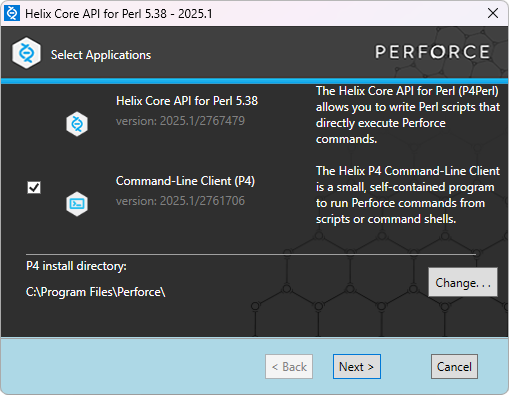
Launch the downloaded .exe file. If you have selected the correct installer for your system, the P4 API for Perl installation wizard will appear.
-
Click through the installation wizard and select the options that are right for your system.
-
To confirm that P4 API for Perl was installed correctly, open a command prompt and run:
perl -MP4 -e "print $P4::VERSION"If successful, the installed version number will be displayed.
Building P4 API for Perl from Source (Advanced Installation)
This section walks you through manually building P4 API for Perl from source. Use this method if you are using a platform not supported by the installer or need custom build options.
Prerequisites
Before you begin, make sure you have the following:
Perl
A compatible version of Perl:
-
Supported for building: Perl 5.26, 5.30, 5.34, 5.38
-
Recommended: Strawberry Perl 5.38 (64-bit) for Windows
Ensure your Perl is 64-bit if you're building a 64-bit version of P4 API for Perl.
P4 API for C/C++
Download from the file from the Perforce website.
Choose the correct archive for your operating system:
-
Windows:
p4api.zip -
Linux/macOS:
p4api.tgz
Match the API build to your Perl compiler:
-
Use MinGW builds for Strawberry Perl (
bin.mingw*) -
Use Visual Studio builds for ActiveState Perl (
bin.ntx*)
OpenSSL Libraries
These are required for SSL support.
-
Supported versions: OpenSSL 1.1.1 and 3.0.8
Example path for Strawberry Perl: C:\Strawberry\c\lib\ (contains libcrypto.a and libssl.a)
Build Tools
Based on your platform and Perl distribution:
-
Linux/macOS:
make -
Windows (Strawberry Perl):
gmake -
Windows (ActiveState Perl):
-
dmake via ppm install MinGW -
ppm install dmake
-
-
Windows (Visual Studio Perl):
nmake
Perforce Executables
Required for testing:
-
p4 (CLI)
-
p4d (Server)
These must be installed and available in your system’s PATH.
Build Steps
-
Unzip the P4 API for C/C++ archive into an empty folder.
-
Extract the P4 API for Perl source archive into another empty folder.
-
Depending on your operating system, run the following commands:
Linux/macOS:
Copyperl Makefile.PL --apidir=<path to P4API> --ssl=<path to SSL libraries>
makeWindows (Strawberry Perl with MinGW):
Copyperl Makefile.PL --apidir=<path to P4API> --ssl=<path to SSL libraries>
gmakeWindows (ActiveState Perl with MinGW):
Copyppm install MinGW
ppm install dmake
perl Makefile.PL -make=dmake --apidir=<path to P4API> --ssl=<path to SSL libraries>
dmake
dmake installWindows (Perl built with Visual Studio):
Copyperl Makefile.PL --apidir=<path to P4API> --ssl=<path to SSL libraries>
nmake -
Testing the build by running:
<make> testReplace
<make>with the appropriate tool (make, gmake, dmake, or nmake).If you see an error like
"Can't load ... P4.dll", manually apply the manifest:Copymt -nologo -manifest blib\arch\auto\P4\P4.dll.manifest -outputresource:blib\arch\auto\P4\P4.dll;2
del blib\arch\auto\P4\P4.dll.manifest -
To install P4 API for Perl , run the following:
<make> installOn Unix systems, you may need to run this as root. -
(Optional) By default, P4 API for Perl builds with a stub SSL library. To enable full SSL support, use the
--ssloption during build:-
If you provide a path, the linker uses your specified SSL libraries.
-
If not, it uses the system’s default SSL libraries.
-
Sample script to test P4 API for Perl
To further check if P4 API for Perl has been installed correctly, create a simple script that connects to your server.
Create test_p4.pl in a folder (for example, C:\p4perl) with the following code:
use strict;
use warnings;
use P4;

my $p4 = P4->new();
$p4->SetPort("perforce:1666");   # Change to your server:port
$p4->SetUser("andrew.roberts");    # Change to your Perforce username

$p4->Connect() or die "Failed to connect: ", $p4->Error(), "\n";
print "Connected to Perforce!\n";

my $info = $p4->Run("info"); #passing array ref
print "\n\nP4 Info Output:\n\n";
foreach my $akey (@{$info}) {
  my @infos = keys %$akey; # $akey is hash ref
  foreach my $hkey (@infos) {
    print "$hkey => $akey->{$hkey}\n";
  }
}

$p4->Disconnect();
To run the script:
-
Open Command Prompt and navigate to your script folder:
cd c:\p4perl
-
Run the following:
ruby test_p4.pl
-
If P4 API for Perl successfully connects, server information will be output to the terminal.