Security best practices
Use the following best practices to keep your Perforce ALM and Perforce ALM License Server data secure. Implementing these practices can help you avoid common mistakes that could leave your data vulnerable to theft, damage, or loss.
On this page:
Server management
Use the following information to properly manage and secure the Perforce ALM Server and license server.
Enable encryption to secure client/server communication
Perforce ALM clients exchange data with the Perforce ALM Server, which also exchanges data with the license server and any other Perforce ALM applications you use. To keep your data secure,
To
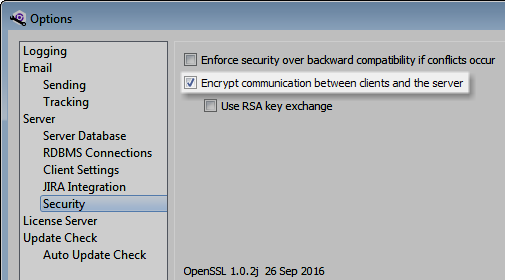
To encrypt license server communication, select Encrypt communication between the license server and other applications in the server options in the Perforce ALM License Server Admin Utility.
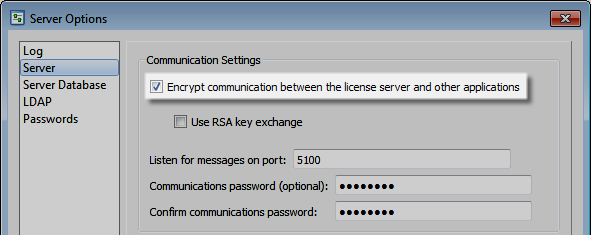
We strongly recommend using RSA key exchange on the Perforce ALM Server and license server if your network is potentially insecure or any users access client applications outside your network using a username and password. RSA is a public encryption algorithm that uses separate keys for encryption and decryption, which helps prevent man-in-the-middle attacks where a hacker intercepts or alters communication between clients and servers. See Securing communication between clients and servers for information.
To
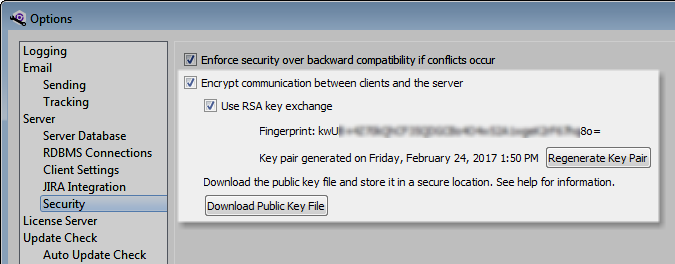
When RSA key exchange is enabled, public and private key files are generated and clients can only connect to the server when the correct key is exchanged. The key files remain on the server hard drive. Download the server settings XML file to a secure location and distribute it to authorized users so they can import the public key fingerprint in client applications used to connect to the
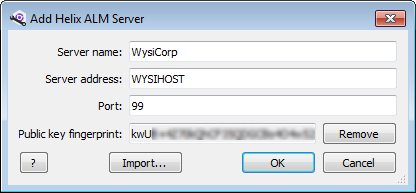
Set a license server communications password to restrict license usage
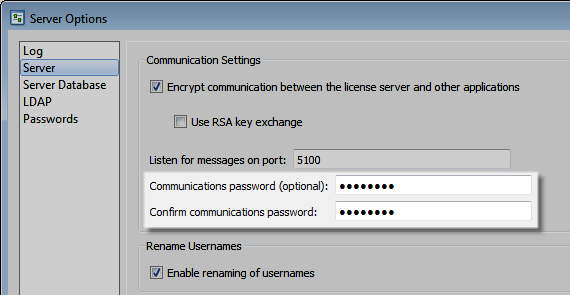
Set a license server communications password to secure communication between the license server and other Perforce ALM product servers, and prevent unauthorized servers from using licenses. To set the communications password, enter and confirm the password in the server options in the license server admin utility.
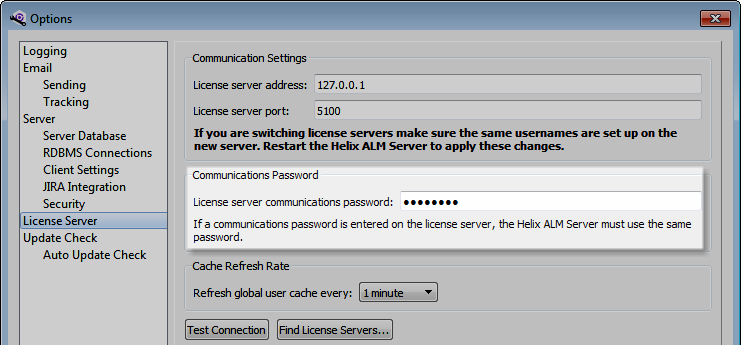
After the communications password is set, you must also
Configure firewalls and proper network security
If users do not connect to Perforce ALM from outside your network, configure a firewall and network address translation (NAT) to separate the Perforce ALM Server and license server from the internet. Any server exposed to the internet is vulnerable to hackers who can destroy data, encrypt data and hold it for ransom, or exploit your company’s products. The specific security measures needed depend on your network configuration. Ask your network administrator for help.
Configure security for external source control providers
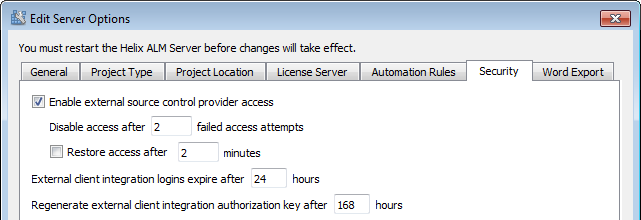
In the Perforce ALM Registry Utility, configure server security options to control access to Perforce ALM data from external source control providers. These options can help prevent hackers from decrypting provider keys for external source control provider integration and automatically disable access and reject requests from clients after failed access attempts.
Check log files regularly
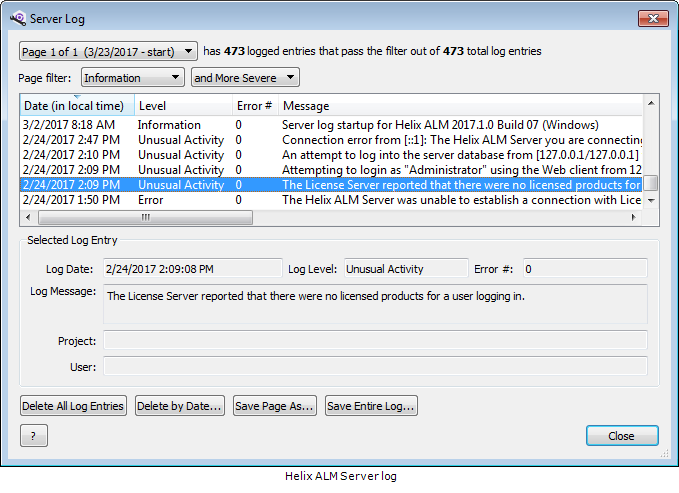
Review the
The following screenshots show the Perforce ALM Server and license server logs.
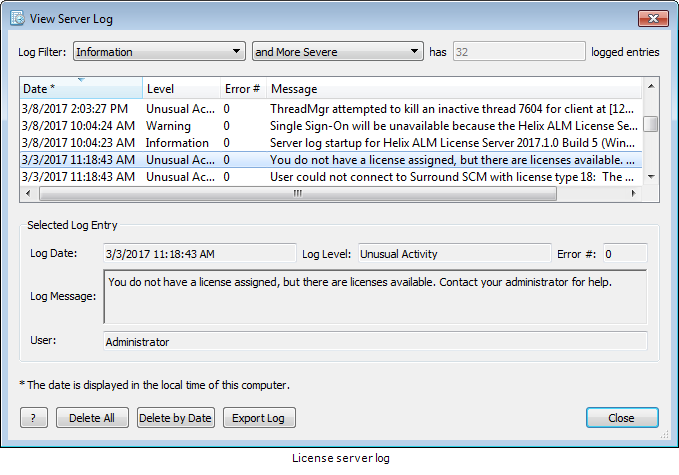
You can also
Keep applications up to date
Make sure you always use the most recent Perforce ALM version. Upgrading when a new version is available not only provides you with the newest features, but could also provide additional security options not available in earlier versions.
To automatically
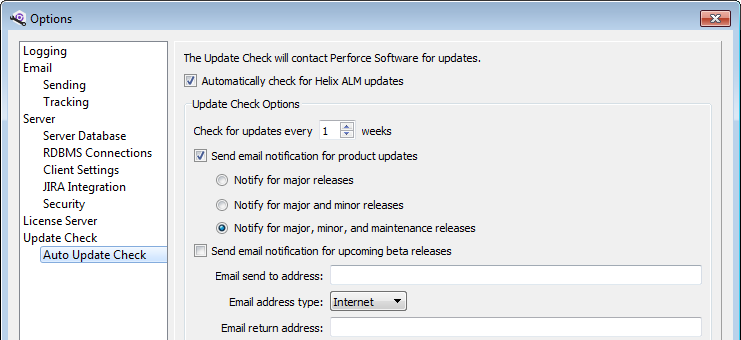
To
Make sure to also review any new RDBMS updates and security patches. Installing these updates keeps your RDBMS running with the necessary features to meet current security standards. See the RDBMS help for information.
Web server management
Use the following information to secure the web server that hosts
Enable HTTPS to secure browser/CGI communication
Encryption options in the Perforce ALM Server and license server admin utilities only secure data that passes between desktop clients and server applications. Login credentials sent from web clients to the Perforce ALM Server and license server are not encrypted. If users access Perforce ALM Web from outside your network, configure HTTPS on the web server that hosts it to encrypt communication between browsers and the CGI. See the web server help for information about HTTPS.
Configure response headers to prevent clickjacking attempts
Clickjacking can occur when hackers use transparent frames or iframes to embed content in web pages to trick users into clicking buttons or hyperlinks on a different web page in another domain or application. To protect your data and prevent clickjacking in
Database management
Use the following information to secure Perforce ALM and license server databases.
Restrict access to database files
Perforce ALM clients and the license server admin utility do not need write access to database files because they pass data through the server applications. Restrict access to database files to prevent users or other processes from modifying or deleting data.
If your data is hosted in native SQLite databases, only the Perforce ALM Server and license server processes need write access to database files. If your data is hosted in PostgreSQL or SQL Server, only the database server process needs write access to database files. See the operating system help for information about configuring file security for SQLite files or ask your DBA for help with security for RDBMS files.
Back up database files regularly
Always back up your data regularly. Nightly backups ensure data loss is minimal if a virus attack, hardware failure, or malicious activity occurs.
Make sure to back up the license server database,
Maintain host computers to prevent data corruption
Data loss can occur due to virus attacks, hard drive failures, or file system corruption. Take the following measures to prevent data corruption on computers that host the Perforce ALM Server, license server, and the server and
- Use an uninterruptible power supply (UPS).
- Make sure the hard drive is properly maintained and in good condition.
- If you need to shut down the computer, make sure it is done correctly.
User management
Use the following information to efficiently manage user access to Perforce ALM clients and the license server admin utility.
Change default administrative passwords
Default administrative user and local admin user passwords are set on the Perforce ALM Server during installation. The default administrative user (Administrator) lets you log in to Perforce ALM for the first time to
To change the administrative password,
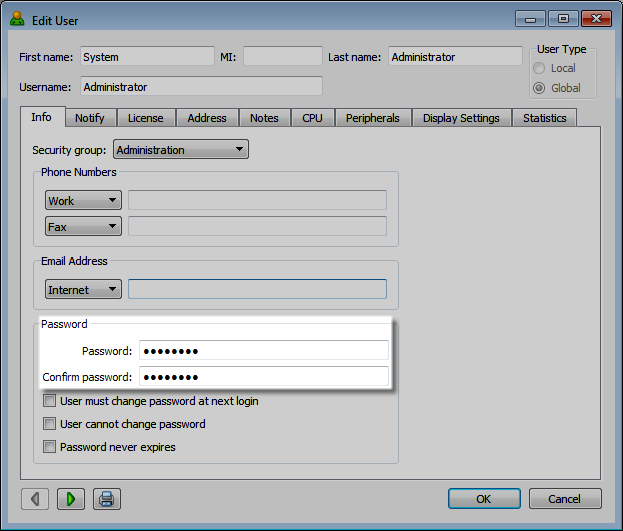
To
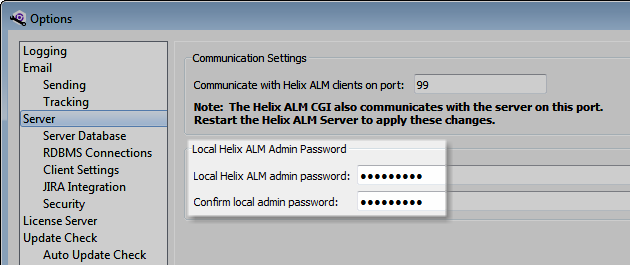
Enforce strong password requirements
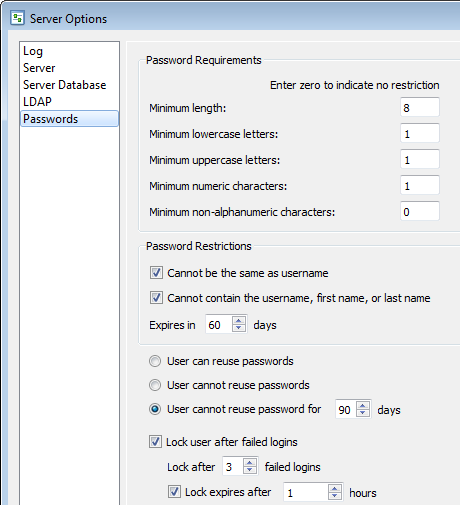
Passwords are one of the easiest ways to protect against unauthorized access. Many users choose weak passwords. Make sure your team uses industry-standard methods to create strong passwords. Effective passwords should:
- Be a minimum of eight characters
- Use mixed case and a combination of alphanumeric characters and punctuation
- Not contain personal information or elements of the username
- Not be real words or patterns of letters on a keyword
- Not follow the pattern of previous passwords
- Be easy to remember but difficult to guess
Configure password requirements, such as minimum password length and required character types, in the license server admin utility to force users to set strong passwords.
Restrict user access to functionality
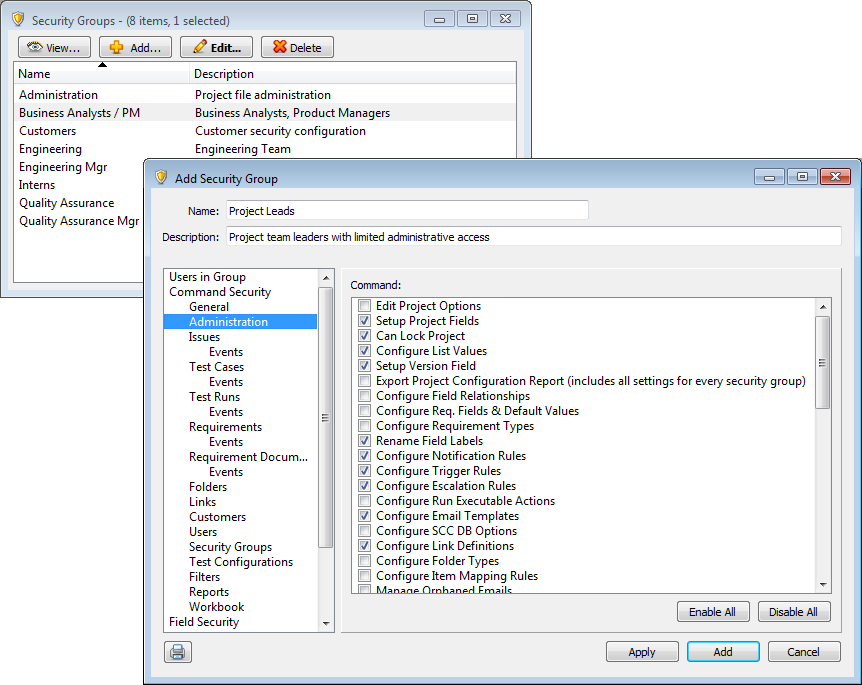
Security groups control user access to Perforce ALM actions. A user only has access to perform actions based on the enabled commands for the security group they are assigned to. Carefully consider the access users in different roles need and
When
Add separate users and use API keys for REST API authentication
The Perforce ALM REST API authenticates with the Perforce ALM Server when getting a list of projects or an access token. We recommend using the following configuration for stronger security with the REST API.
- Add a Perforce ALM user specifically to use for changes made through the API. If you have multiple integrations, add a separate user for each integration with the API. The history and audit log will show that the API user made changes instead of individual users. Do not enable single sign-on for the dedicated REST API users.
- Add the dedicated API user to a security group that only has commands enabled for actions performed by the application that uses the API. For example, enable the Allow Login Via SOAP command, which is required to use the REST API, and disable all other login commands.
- Use an API key to authenticate the dedicated user more securely with the REST API. An API key consists of a key ID and key secret, which you add to the Authentication header in the REST API. See Authentication in the REST API help.
If you use a username and password to authenticate and the credentials for the integration are compromised:
- Anyone can log in to Perforce ALM using any client the user has permission to log in to.
- Anyone may be able to use the credentials to access other network resources if an Active Directory or LDAP username and password was used.
- The only recourse is to change the password, which will require updating all integrations that use the credentials.
We recommend API key authentication because:
- The key and key secret are longer, cryptic strings that are difficult to decode.
- The key can only be used with the REST API. If a key is comprised by a hacker, they cannot use it to log in to Perforce ALM clients.
- A user can have multiple keys for different integrations. If a key is compromised, you can delete the key without breaking other integrations or updating credentials in each one.