Folders list - Details tab
The Details tab on the Folders list displays basic information about the selected folder, release planning information, folder permissions, and history.
Details
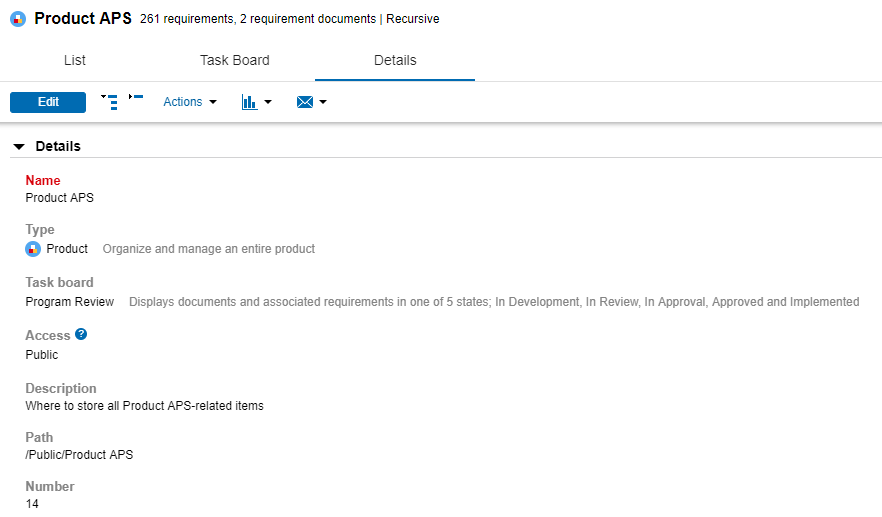
The Details area displays basic information about the folder, including the name, folder type, task board, access, description, path, and number. See Editing folder details.
Release Planning
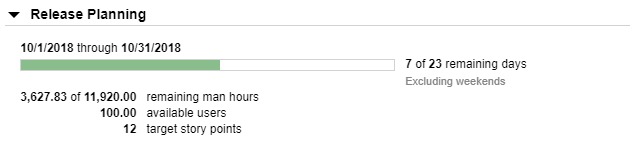
The Release Planning area displays a release schedule overview. The release start and end dates, available working days, remaining days in the period, available users, total man hours, and total story points are displayed. The number of remaining days in the period and man hours are updated as the schedule progresses. This area is only displayed if release planning is enabled for the folder type. See Entering release planning information for folders.
Permissions
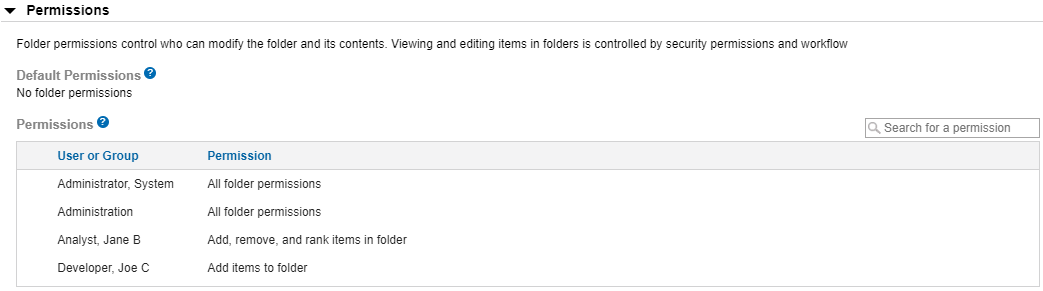
The Permissions area displays users and security groups who can modify the folder and its contents. It also displays the default permissions for all other users and security groups that are not specified in the Permissions list. See Setting folder permissions.
Baselines
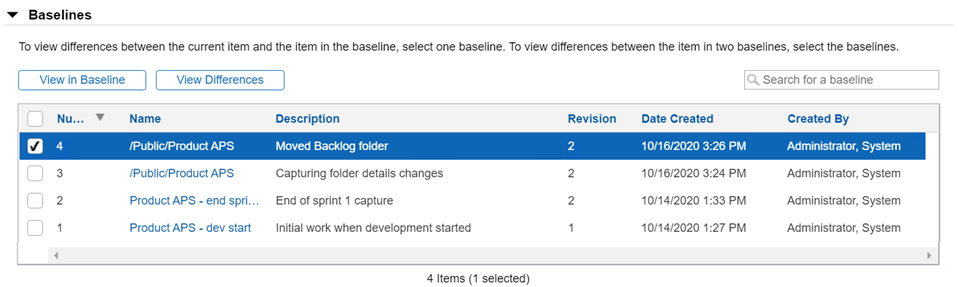
The Baselines tab displays baselines that contain the folder. Baselines preserve data for a collection of items at a point in time, such as a project milestone. You can view the folder as it was when a specific baseline was added, view differences between the current folder and folder in the baseline, and view differences between the folder in two baselines. See Working with baselines from items.
History
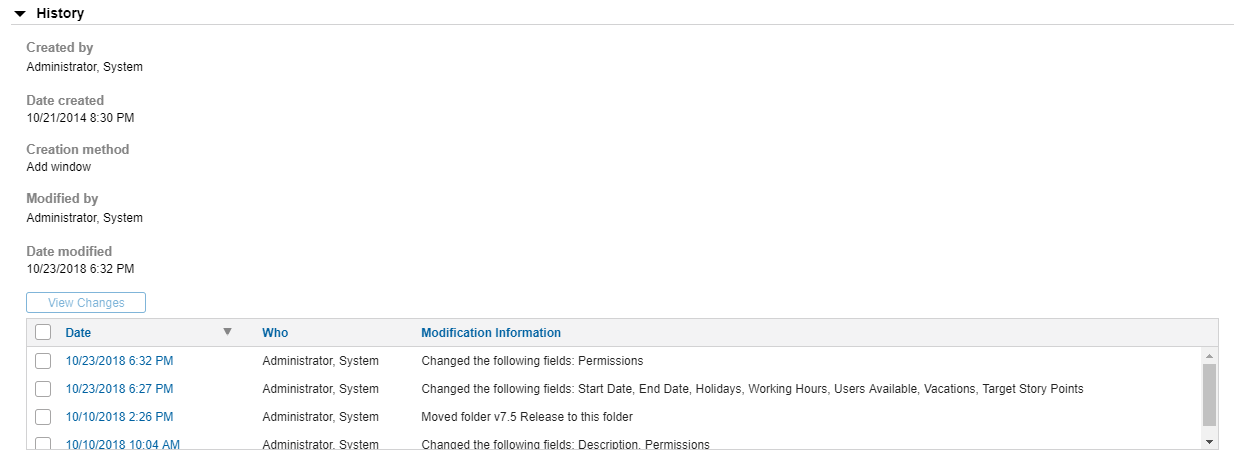
The History area displays historical folder information, including the user who created the folder, when it was created, how it was created, who last modified it, and the date it was last modified. You can also view history entries added when folders are created, moved to a different parent folder, or deleted, or when items are added to or removed from folders. See Viewing folder history.
Performing actions from the Details tab
- To edit the folder details, click Edit. Click Save to save any changes. The folder must be unlocked and you must have all folder permissions to edit the details. See Managing access to folders.
- Click
 to expand all areas or
  to collapse all expanded areas.
 - To perform additional actions, click Actions and choose an action.
- To run a report on the selected folder, click
 and mouse over the report to run. Choose HTML to run the report in HTML format. See Running reports. Click PDF to save it in PDF format. See Saving reports as PDF files.
 - To email a Helix ALM user or other recipient, click
 and choose an option.


