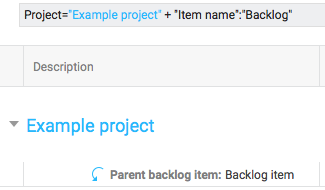
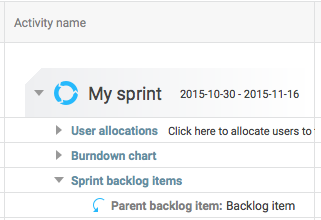
It is important for all project members and managers to see the context of a task when it is not displayed in full in the Planning and Backlog views. P4 Plan has a "sub project path". Basically, this means that tasks will be displayed as "Sub project A: Task B" instead of just "Task B" whenever Sub Project A is not visible. This is normally the case in the To Do List, Find, Portfolio find and Limited Visibility.
A main manager can set the sub project path displayed in email notifications.
1. Click More and choose Customize Project.
2. Click the E-mail notifications category.
3. Select a Sub project path option.
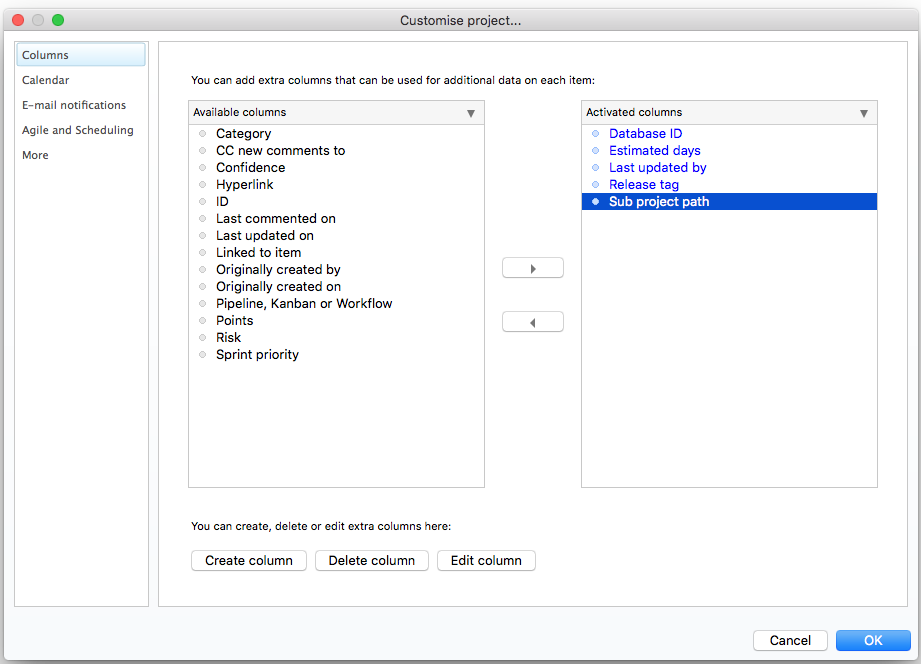
Sub project path can be shown in a separate column (as opposed to before Item name). Activate the pre created column "Sub project path":
 \
\
Examples
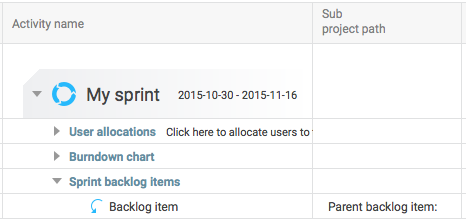
To do (path seen in gray):
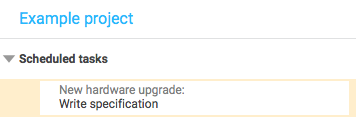
Prioritized (path seen in blue and gray):
Portfolio find (path seen in gray):