The Sprint priority view enables you to manage the priority settings of all items in each sprint. You can access this view by clicking the leftmost drop-down menu in the toolbar—labeled either Gantt Schedule or Agile Schedule depending on your current mode—and selecting Sprint priority.
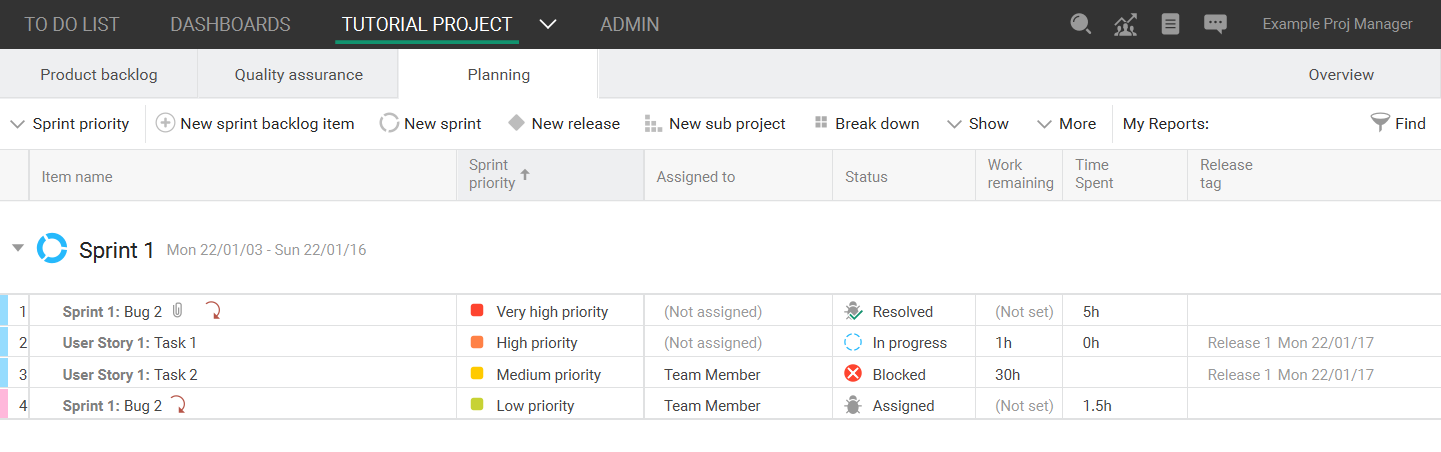
You can customize which sprints and items are displayed by using the Show menu in the toolbar. These options enable you to toggle whether to display completed sprints, items assigned to you, as well as current and future sprints of which you are a member.
Changing the priority on a item in the sprint priority view
There are several methods you can use to update the priority of items in the Sprint priority view.
Setting item priority
1. Double-click the cell in the Sprint Priority column for the item you want to edit.
A menu will appear, displaying all available priority options.
2. Select the priority to assign to the item.
Dragging and dropping items
1. Click the Sprint Priority column header.
The list of items in the sprint is sorted by priority in descending order.
2. Click an item and drag it to the position in the list where you want to place it.
The priority of the item changes to match the items above and below its new position in the list.
Moving items up and down in the list
1. Click the Sprint Priority column header.
The list of items in the sprint is sorted by priority in descending order.
2. Right-click an item in the list and select either the Move to Top or Move to Bottom options in the context menu.
The selected item is moved to the specified position and its priority will automatically be changed to match.