In order for a team member to work on sprint backlog items, ensure that they are members of the sprint. To do this, you can right-click the sprint in the Planning view and choose Allocate users to sprint. You can also click the link in the User allocations row. Both methods open the Allocate to sprint window.
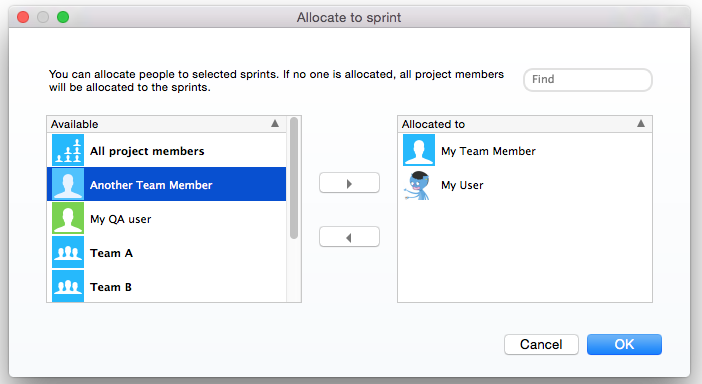
To allocate a user or group, select them in the Available list and click the right-facing arrow to move them to the Allocated to list.
To remove a user from the sprint, reverse this process by selecting them in the Allocated to list and clicking the left-facing arrow.
When you have allocated users to a sprint, you can use the Work remaining column to track the total workload. When users update the estimated work remaining on backlog items, this also updates the user allocation meters on the timeline part of the schedule to reflect the total work remaining for each user.
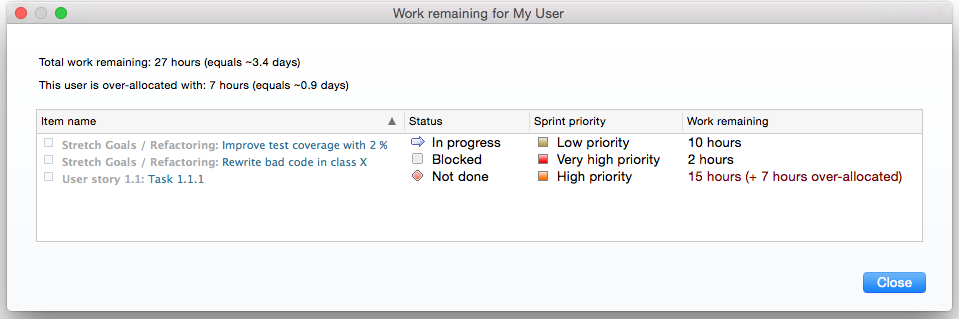
Clicking a user in the User allocation section displays a summary of sprint items assigned to that user.
If backlog items in the sprint have not been assigned to a user, they will appear as Not assigned to member of sprint. You can click this to view all unassigned items.
To set allocations, right-click a user and choose Set allocation percent for [user] in this sprint. Users can be allocated by a percentage, to accommodate the fact that users can work on several sprints in parallel, or that users might have responsibilities outside of the sprint work.