How To: Working with user stories
User stories are a very powerful tool when working with requirements in product development. This article describes how to work with them and assumes you have a basic understanding of what they are.
Step 1: Create a template for user stories
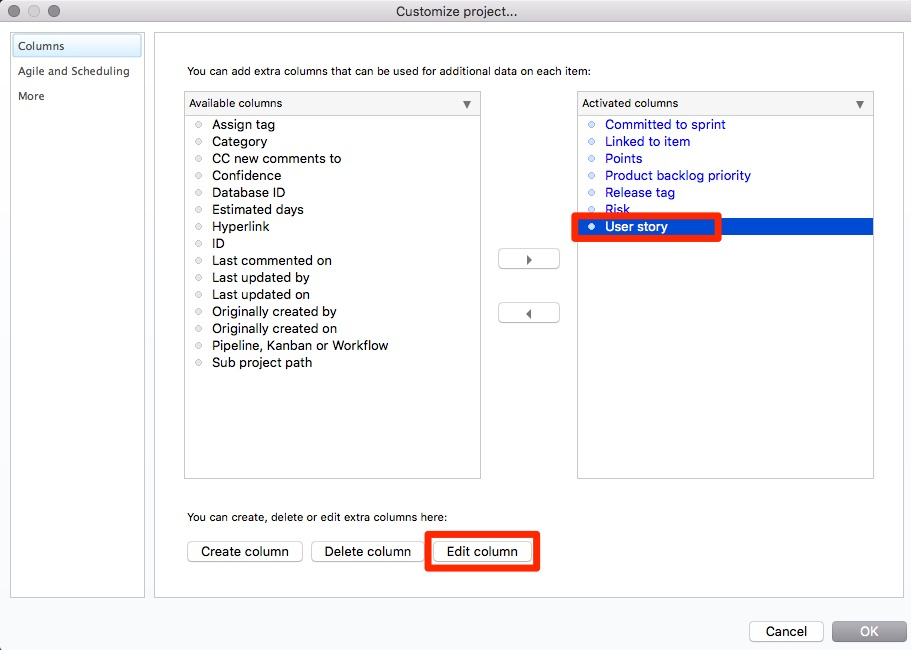
- Go to the product backlog and More > Customize Project
- Select the User story field and click Edit column
- Go to the Advanced tab and click that you want to specify a Default Value and type in your template.
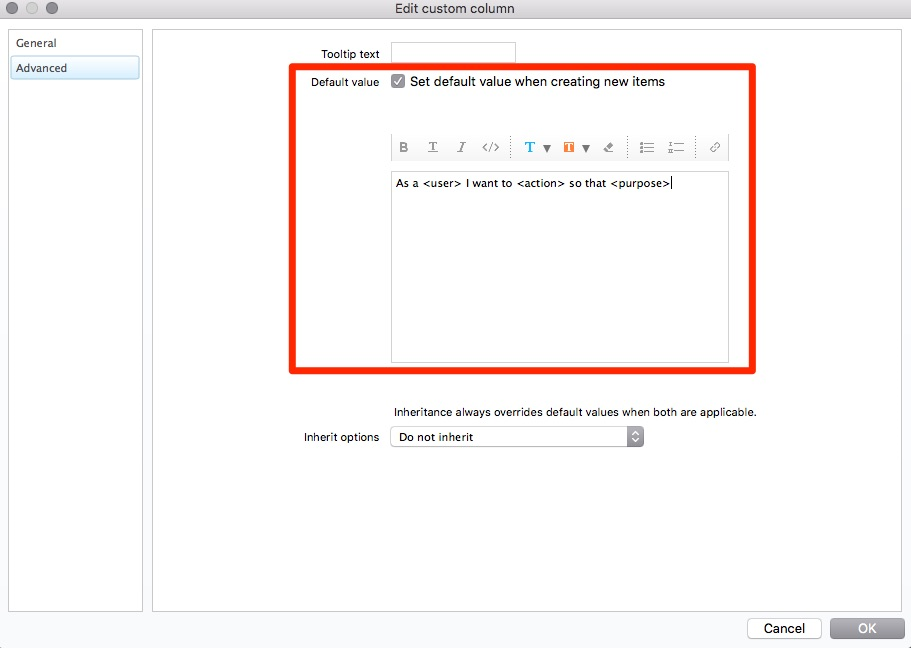
Now for every new user story this information will be pre-filled for the user adding the user story.
Step 2: Add user stories
- Create a new item
- Give it a short name, we recommend that you give it the name of the action or short summary of feature
- Right-click on the item and select Flag as User Story (there is also a keyboard shortcut for this, Ctrl + Shift + U on Windows)
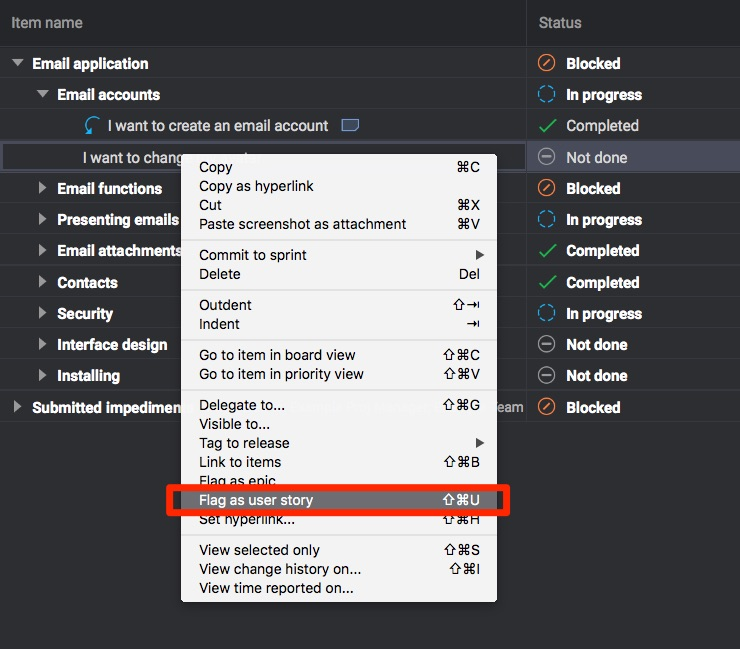
- This will give the item a blue flag next to the name to indicate that it is a user story and you will have a multi-line text field where you type the user story:
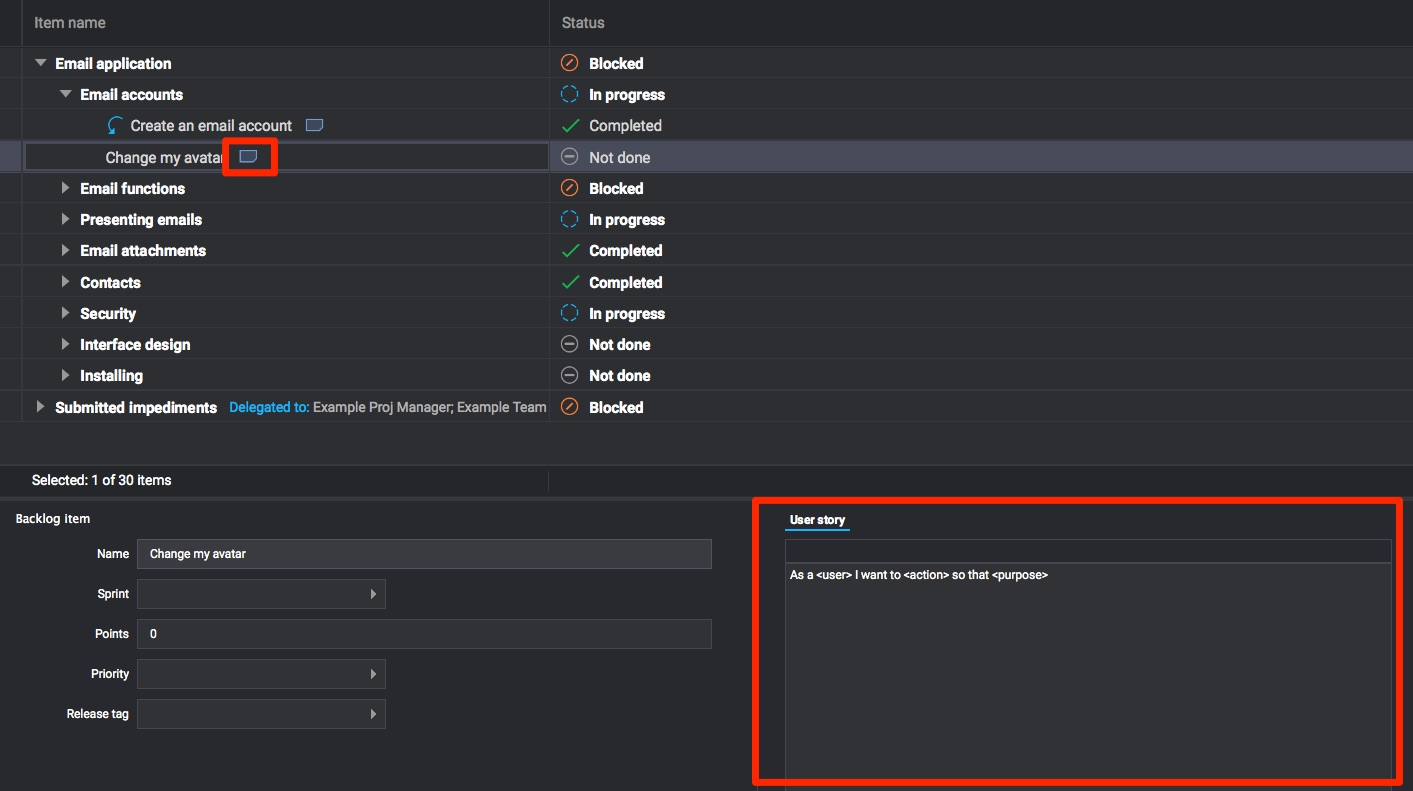
- There is a show option to show the user story in the product backlog view
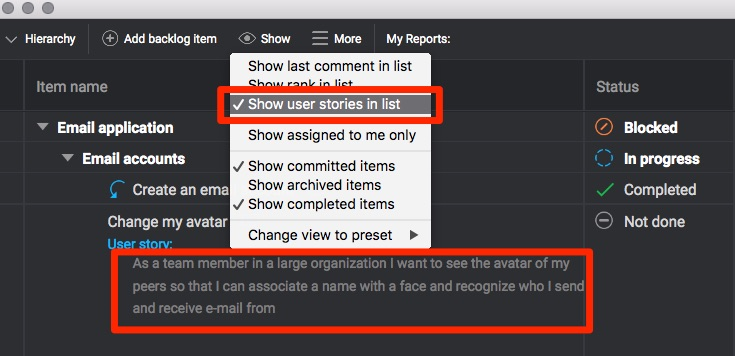
Step 3: Defining how you work with user stories
The common pattern for user stories is As a <user> I want to <action> so that <purpose> and the true beauty of it is the simplicity and that it captures three key attributes: for who (persona), what (feature) and why (value).
Acceptance Criteria
An acceptance criteria is often needed to define what must be fulfilled for the user story to be considered completed. These are typically testable bullet points that are captured in a dedicated field in P4 Plan and controlled by the Product Owner.
- In the Product Backlog, go to More > Customize Project and create a new column of type Multi-line text field.
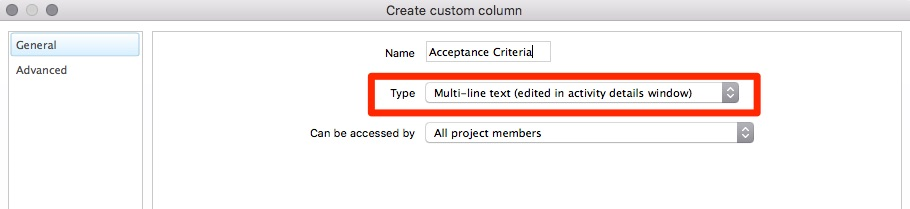
- Acceptance Criteria is now available next to the user story field:
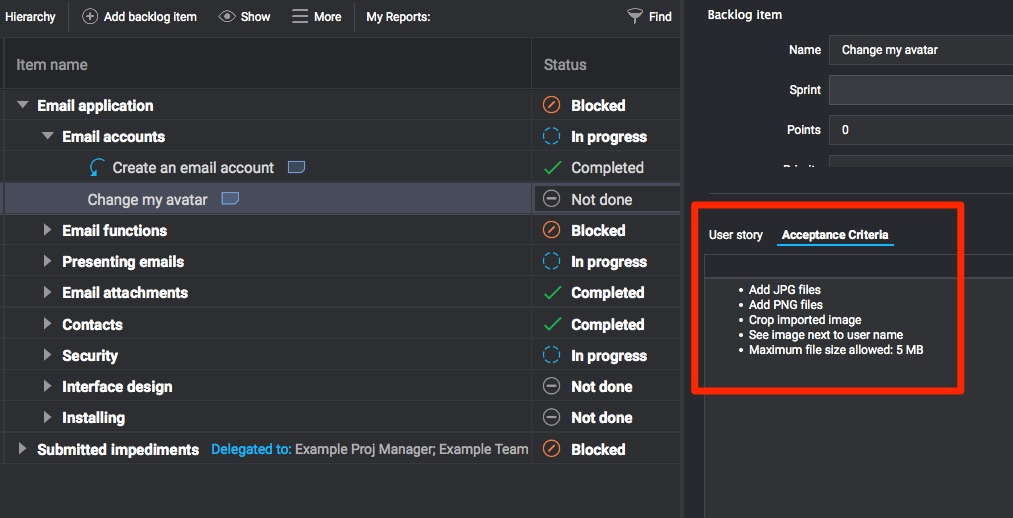
Quality of user stories
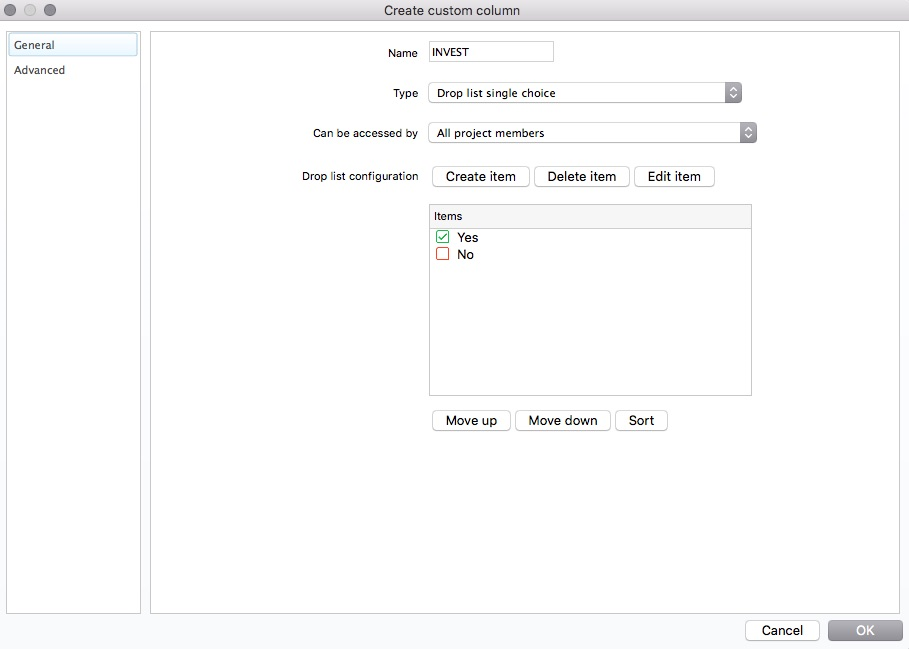
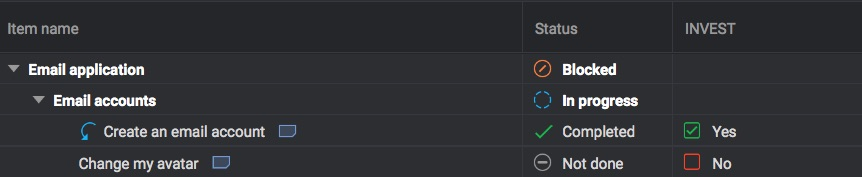
A user story should follow the principles of INVEST (independent, negotiable, valuable, estimable, small enough and testable). You might want to consider having a check box to mark that it fulfils these criteria:
- In the Product Backlog, go to More > Customize Project and choose to Create Column:
Definition of Done
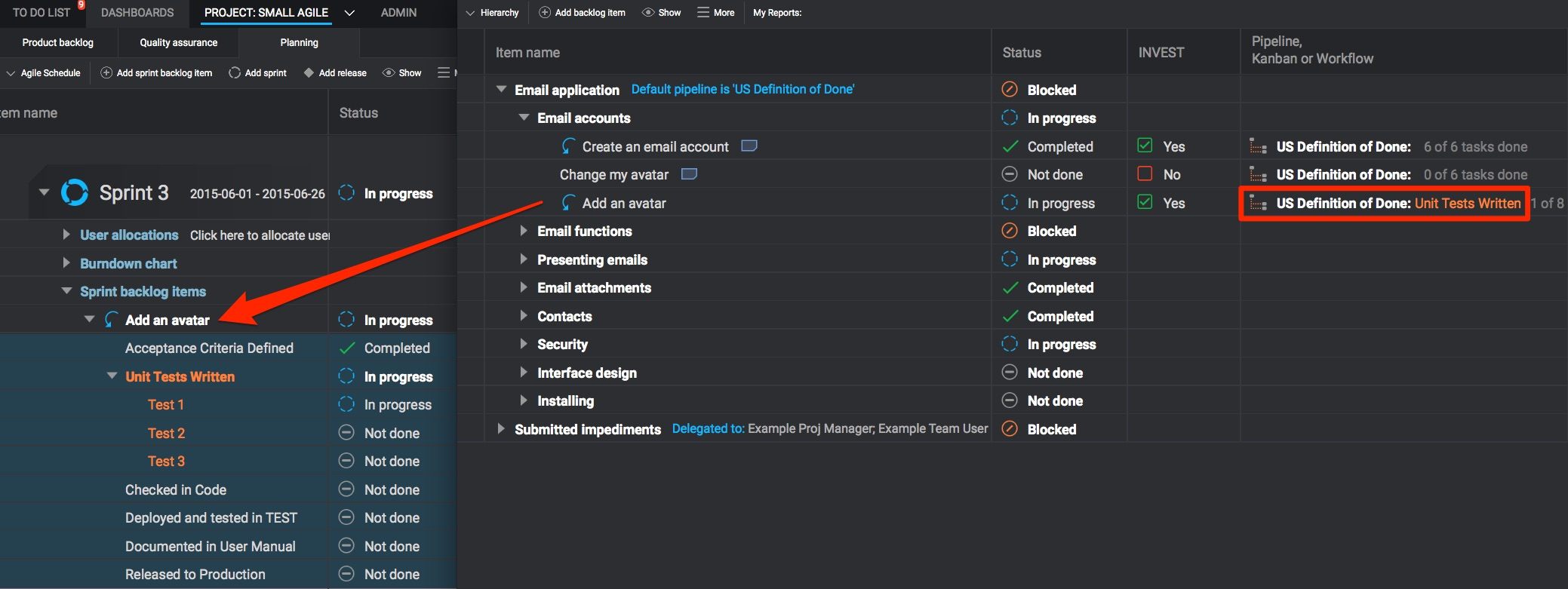
In addition all user stories share a Definition of Done - the steps needed for the user story to be considered done-done (both from a product development perspective as well as the customer perspective).
This can be represented as a pipeline in P4 Plan that main managers can configure.
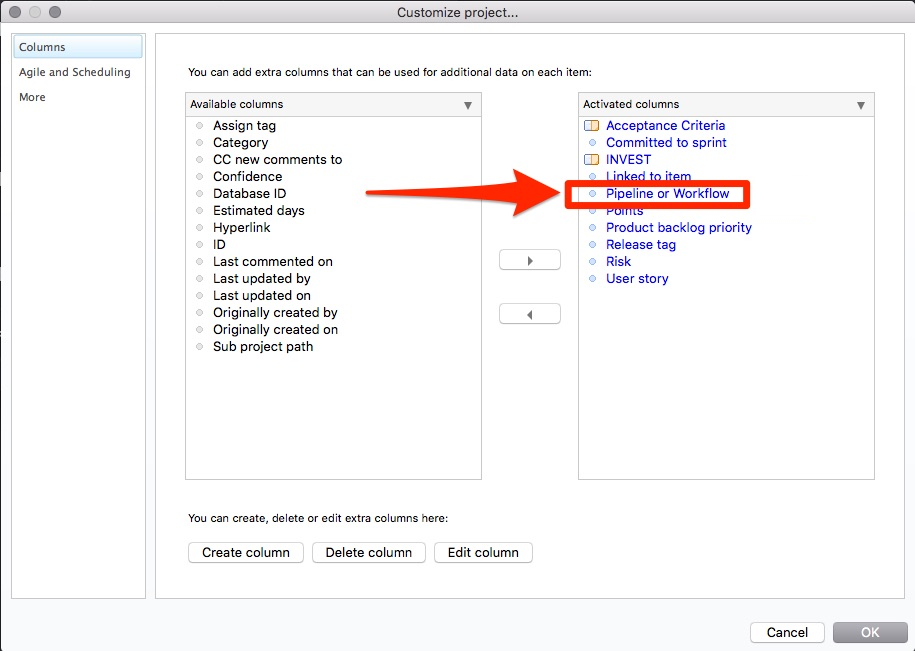
- Go to More > Customize Project
- Activate the column Pipeline or Workflow by moving it from the left side to the right:
- Go to More > Pipelines and Workflows and Create Pipeline.
- Add tasks and connect them with arrows:
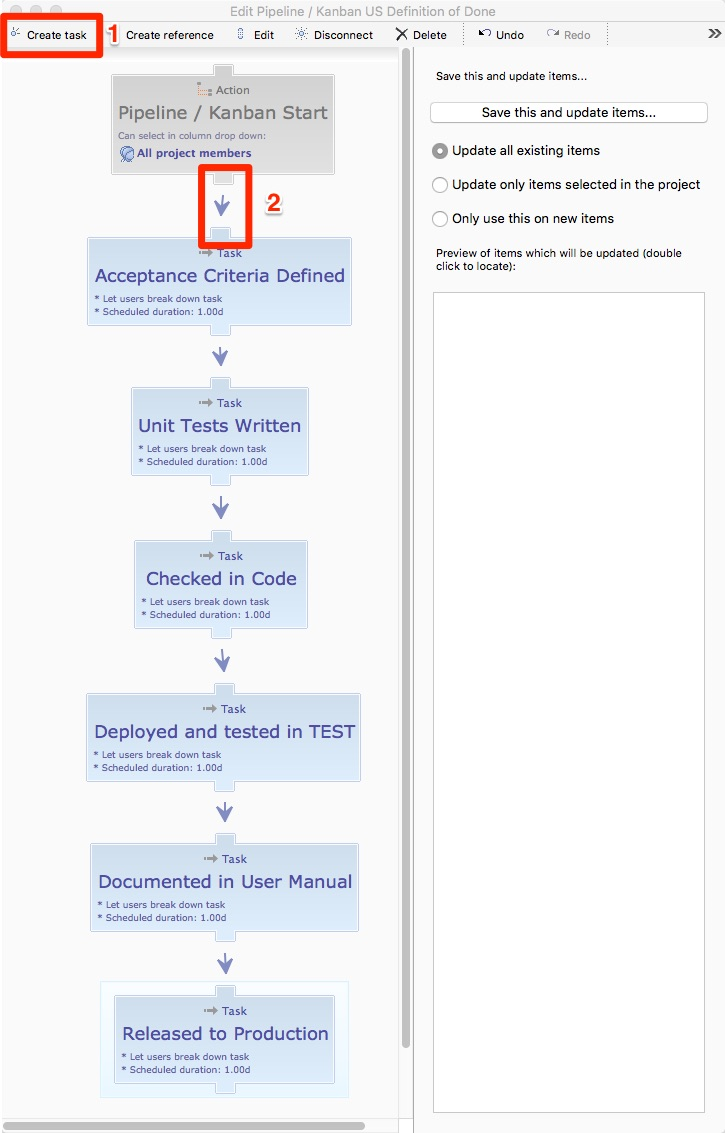
- Click Save this and update items.
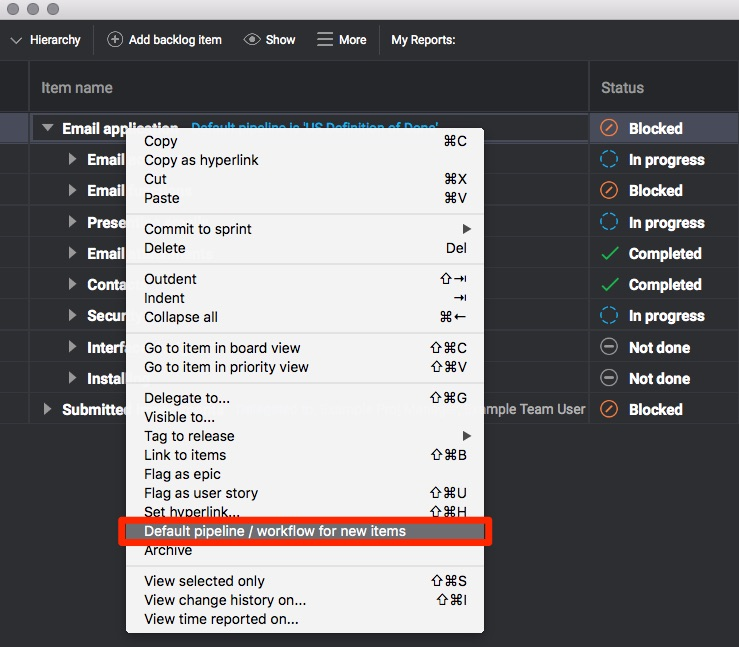
- Right-click on the root item in the product backlog to set a default pipeline:
- When you move the user story to the sprint it will now be broken down into the steps you defined in the pipeline: